Just another idea but @daniel.m.tripp and @pdecker opinions are better than mine…
In the source PC
If it’s Linux Mint, use the following command:
-
Install ssh on the PC where you have the files.
-
sudo apt install openssh-server -
Enable ssh.service:
-
sudo systemctl enable ssh -
Confirm if it is running
sudo systemctl status ssh -
Configure ufw to open port 22 just to your other PC:
sudo ufw allow from <IP of Target PC> port 22 -
reload ufw
sudo ufw reload
In the target PC
Create a directory on the target PC to which you will copy the files.
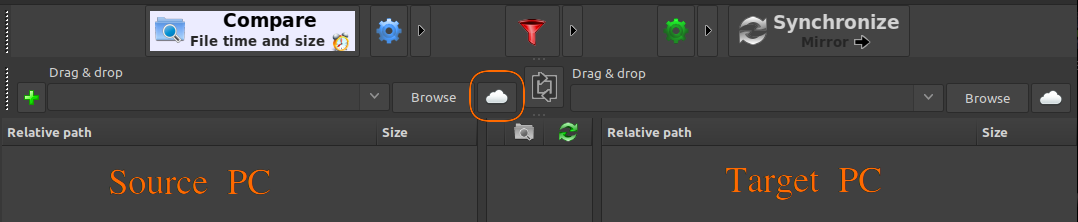
Open FreeFileSync on the target PC you want to copy the files to
Configure it as follows:
-
Select the cloud icon on the side of the source PC
-
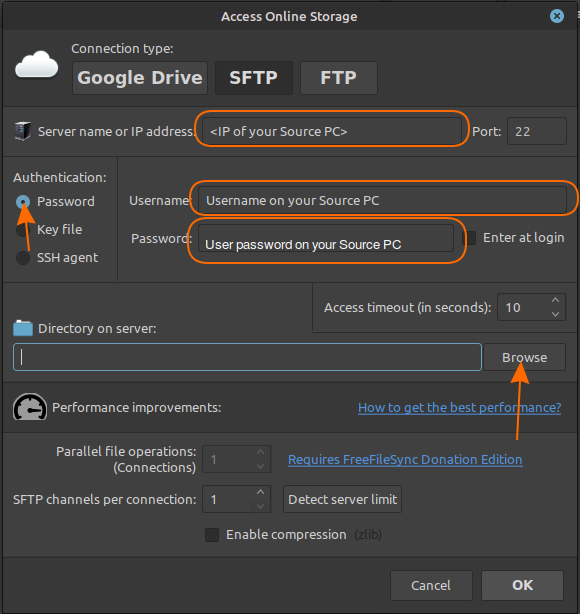
Follow these steps on the Source PC side:
- Select SFTP;
- Insert IP of your Source PC;
- Select Authentication: Password;
- insert username of your Source PC;
- Insert user password of your Source PC;
- Click on the Browse icon and choose the directory where the files you want to copy are located.
-
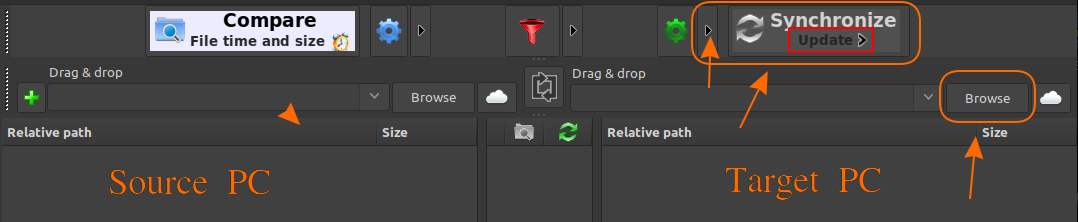
Follow these steps on the target PC side:
- click on the Browse button and choose the directory you want to copy the files to;
- Choose the type of synchronisation you want to do (beware that Mirror deletes anything extra on the target PC). I would choose synchronise → update
- And then use FreeFileSync as you usually do
Ohter way:
In the source PC
If it’s Linux Mint, use the following command:
-
Install ssh on the PC where you have the files.
-
sudo apt install openssh-server -
Enable ssh.service:
-
sudo systemctl enable ssh -
Confirm if it is running
sudo systemctl status ssh -
Configure ufw to open port 22 just to your other PC:
sudo ufw allow from <IP of Target PC> port 22 -
reload ufw
sudo ufw reload
In the target PC
Create a directory on the target PC to which you will copy the files.
Install Filezilla:
sudo apt install filezilla
Open Filezilla:
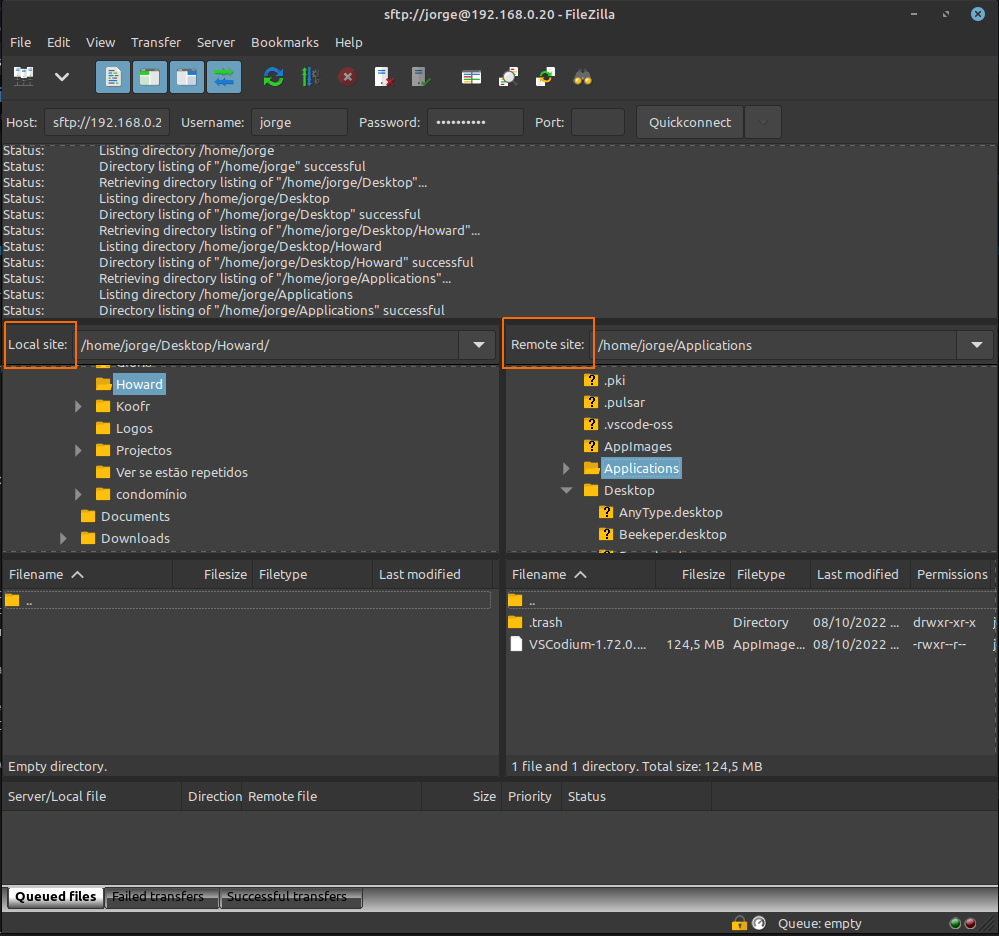
- In Host field insert IP from your source PC;
- insert username of your Source PC;
- Insert user password of your Source PC;
- Insert port 22 and press enter
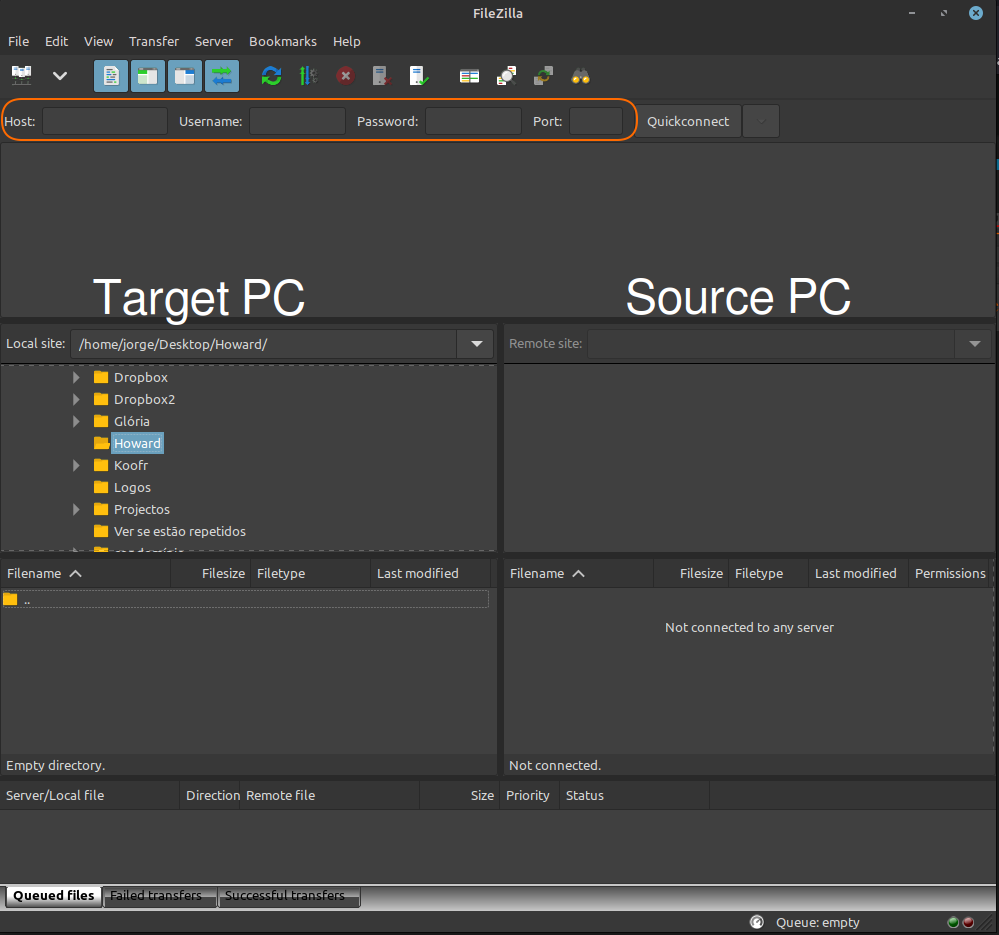
Now, on Source PC side, you have the Source PC directory tree . Choose what directory or files you want to copy and drag to Target PC
This is an example of my Filezilla with both source and target PCs:
I hope this information is useful
Jorge