I tried Quad9 because it provides malware website blocking, in the event I miss-spell the URL for a website I’m trying to go to, but some black hatter created a site that looks exactly like where I was trying to go, but when I get three, all I’ll get is problems because the site makes me log in while it injects malware into my computer. Since I use a good password manager, that’s not something I worry about, but I still think it’s better safe than sorry. After I changed the DNS IP address on my computer, I’m noticing that web pages load noticeably faster than with my ISPs server (ATT), so if I can figure out how to make that change on my modem/router, I do it so every device on my home Network speeds up a bit.
Yup, and not too long before that, they had that issue that played havoc with a lot of Windows systems. I bet they’re being a lot more careful about the patches they push out to their clientele now …
Bad news, I kinda prefer being able to edit config files (carefully) to make changes to my computer. It would be so much simpler when you have to teach a newbie how to manage their home Network …
Me too.
I usually get rid of any network manglers ( NM, connman, etc) and go back to dhcpcd and ifupdown.
Even worse… there is a systemd intrusion into the DNS area… cant it keep its fingers out of networking ?
I just checked and yes, I did. In the past I used OpenDNS. A few months ago I ran a utility that checked the responsiveness of publicly available DNS servers. For me, the Cloudflare DNS servers were quickest. I use 1.1.1.1 and 1.0.0.1.
There were several with similar response times.
Me too. Stuck in my ways I guess.
There are a few things to consider:
A quick response helps speed name resolution and browsing in general. Unless your current provider is radically slower than another you may not always notice a difference. If you change to one that is quicker and use that for a few days and then switch back, you may notice the slowdown.
Some DNS providers will do filtering to help protect you from malicious sites or filter out certain topics. OpenDNS could filter out porn, guns, violence, gambling, and other categories.
The DNS server resolves all the names to IP addresses and if you use your ISP, for example, they could gather your surfing habits and sell it to someone. I don’t automatically object to that, but some people do.
Some DNS providers support an encrypted service. That way no one but you and them know your surfing habits.
Yeah, I was remarking on that at work. First was an AWS outage, then a week or so later it was Azure, then Cloudflare, and I think I read about another outage near then too. I said, “Looks like China is preparing to take everything down at once.” Hopefully, that’s just a joke.
The single redeeming feature of the Network Manager GUI tool is that it makes Network configuration accessible to new GNU/Linux users, and to my way of thinking, that’s priceless.
I tried changing /etc/resolv.conf file and that did not work in LM. I did find an easy (but a little confusing) way the change the DNS in Network Settings. AI gave me some help on making the changes.
I verified the change with ‘resolvectl status’.
Ernie, maybe another idea? Commands a person can use in Linux to help with telecommunications. Checking status, troubleshooting, …
You would probably want to change the DNS servers configured on your home router. That’s what I’ve done.
I assume most people would have DHCP handled by their router and there is normally some web page on the router to configure such things. You can change the DNS servers used by the router to resolve names. All the DHCP clients would use the router for name resolution, but the router itself is the only one using whatever public DNS servers you have configured.
Does that make sense?
I could post some screen shots if it would help. All the router brands would look different of course.
Hi @pdecker,
DHCP is another term I am not familiar with and do not know it’s function. The 1st router/modem I had, I could log directly into the setting by typing in 192.168.0.1 or something like that. The default ID & PW was Admin / Admin.
The router I now have has a web page to go to and then I have to give my the serial (?) number to access the setting. It has been a long time since my last visit.
So bottom line, I don’t know what to change to the DHCP.
That is a service that runs on your router or a server (at work) that hands out IP addresses to network clients (other computers). When it gives your computer an IP address, it can also give it other things.
IP address
Mask
Default route
DNS server
NTP server
You could hard code those things on each device on your network, but most of the time computers and devices default to using DHCP to get an IP address and other settings. That way there is a central spot to manage those things. If you change your default route IP address, you don’t have update each device on the network individually. They’ll all get the new default route from the DHCP server.
It has a complicated set of commands.. It keeps no trace what you do. It has no mechanism to undo changes. It makes assumptions behind your back.
I find NM difficult. I cant imagine how a new user copes.
Some DE’s add a GUI on top of NM to try and simplify it… but they dont even tell you it is NM under the hood, so when there is trouble you dont know where to look.
The alternative, Connman, is even worse.
Most distros will setup an internet link automatically during install. That is usually enough for a new user.
Yes. It would seem setting nameserver in the router is the simplest way. … especially given the mess of ways of doing it in a Linux computer… eg) do I edit resolv.conf or use NetworkManager or use resolvconf or use systemd or use some GUI that comes with the DE… there are other ways too… eg put nameserver in /etc/network/interfaces… and what works in one distro may clash in another… it depends what the distro sets up by default.
Networking is a good candidate for a Rust rewrite … maybe the Rust mob could do something useful there.
Yes, I used LM GUI called Network Settings to successful change the DNS server. It was a bit confusing because I do not know much about telecommunications. But with a little help, I made the change. I do agree, it would have been easier to make the change in /etc/resolv.conf.
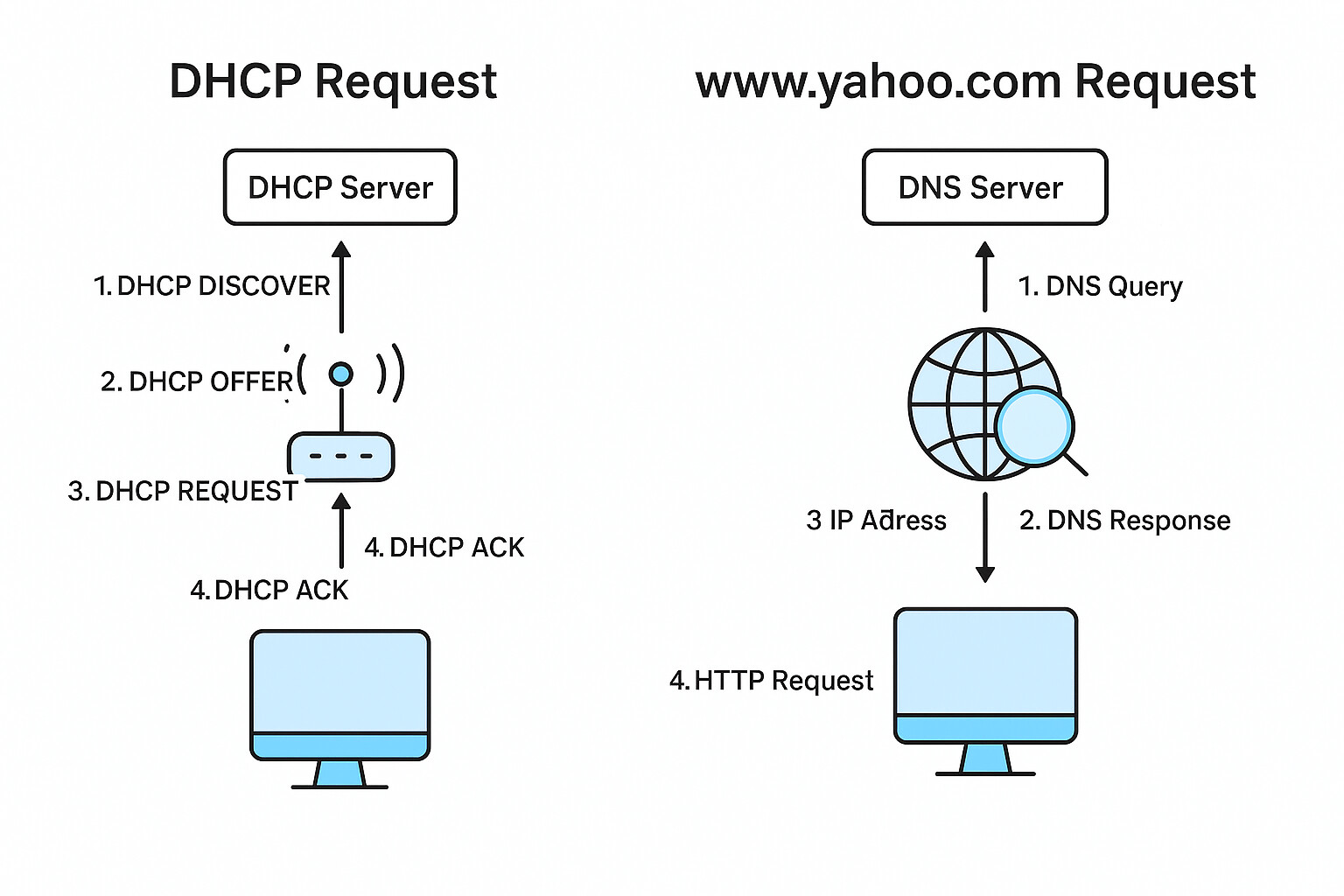
I am sorry, but I am getting a bit lost. It sounds like DHCP is at the top at the network. I thought DNS did most of the things you listed. I suppose I might need a diagram / road map to sort out the path my inquire like www.yahoo.com takes. And maybe I don’t need to know, but it is interesting.
All that DHCP does is allocate an IP number for your interface. It is usually done automatically by the dhcpcd daemon. You can override that and allocate a static ip number manually.
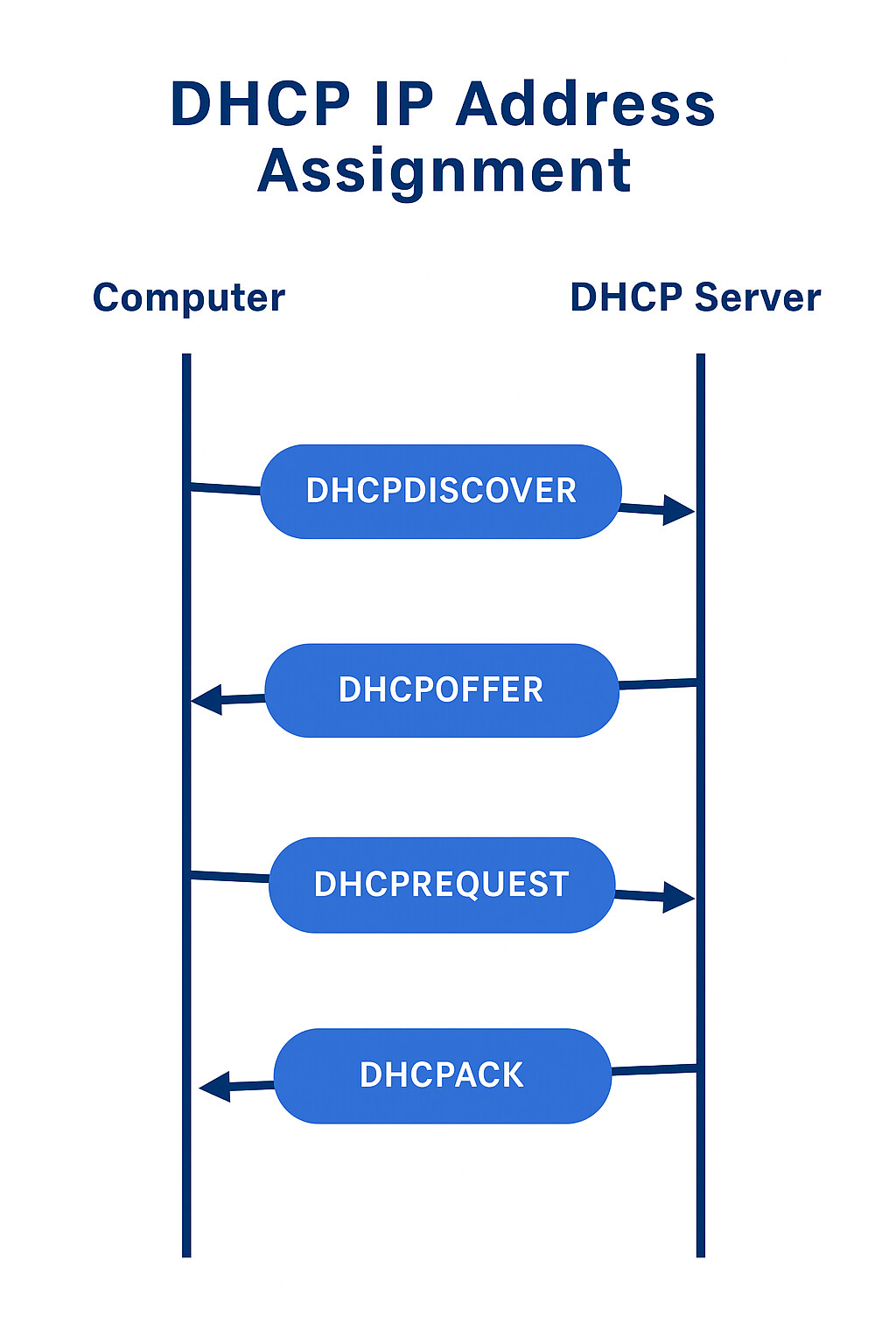
One illustrates the DHCP handshake (how your computer gets an IP address), and the other shows the DNS lookup flow (how your browser resolves www.yahoo.com into an IP before connecting).
The DHCP diagram shows the four-step exchange: DHCPDISCOVER → DHCPOFFER → DHCPREQUEST → DHCPACK.
The DNS diagram maps the journey: browser query → DNS resolver → root/TLD/authoritative servers → IP returned → browser connects to Yahoo’s server.
These visuals should give you the “road map” you were looking for.
The root/TLD/authoritative servers part might require a little more explanation.
In the name www.yahoo.com, the .com part is the top-level domain (TLD). The yahoo part is the domain. The www part is the host or can be called the subdomain too. There are servers designated to handle the TLDs for .com, .net, .edu, etc. These point to the authoritative DNS servers for other domains like yahoo.com or pdecker.com. Those authoritative servers then supply the final answer to www.yahoo.com or www.pdecker.com.
Once your computer has resolved a name to an IP address it caches that for some amount of time. So do the DNS servers you queried. The amount of time is based on the DNS record’s TTL (time to live). That way if something isn’t expected to change very often it can have a long TTL to reduce DNS traffic. If something will change frequently you would want a low TTL on it so the IP address is correct.
Unfortunately there’s no getting around that - professionally - that’s what I have to support… It gets worse - e.g. with AWS EC2 instances - you don’t get a VGA console - you get a virtual serial TTY - and - it doesn’t support TUI applications - so - you have to know ALL the “nmcli” commands - that thing’s a bible on its own! I hate having to learn all those CLI switches…
Where I can - I use “nmtui” (i.e. in a virtual VGA console)… All the big “Enterprise” vendors are pretty much 100% systemd and NetworkManager - i.e. RHEL9 and 10 (now part of IBM)… and also Oracle 8 (which is just rebadged Red Hat anyway).
That’s how I manage all mine mostly… I’ve got so many devices! And WiFi… I’ve usually got anywhere up to 30+ devices (i.e. tablets, smartphones, XBox, Playstation, 4 MacBooks, 1 Mac Mini, WiFi, TV) connected…
But not on my main Ubuntu desktop - I have two NICs in it - and I’ve used the Gnome frontend to NetworkManager to configure my default NIC I use for most stuff - and I used “nmtui” to configure my 2nd NIC for my qemu/kvm bridge NIC… And not my NAS (TrueNAS - i.e. FreeBSD)…
I don’t mean to interrupt here, but perhaps an oversimplified answer may be in order:
DHCP: Dynamic Host Control Protocol. Essentially this protocol defines how computers on a Network are provided with unique IP addresses, so they can be individually identified there. DHCP servers implement the DHCP protocol to provide a unique IP address to each device on the Network (including your home Network). The DHCP server provides and manages IP addressing to all devices on the Network (your home network). Your modem/router provides a DHCP server for your home Network.
DNS: Domain Name Server. DNS provides an IP address that is paired with a provided URL. For example, you want to go to Yahoo, so your web browser sends the URL (https://www.yahoo.com) to the DNS server configured on your computer (by default, the one provided by your ISP). It returns the IP address it has paired with Yahoo’s URL (Like Google and many other very busy webpages, Yahoo uses a range of IP addresses for it’s page due to the enormous magnitude of connection requests, so there is no single IP address for that URL). Your web browser then uses the IP address returned by the DNS server to navigate to the Yahoo webpage associated with the URL https://www.yahoo.com.