I am messy. One thing at a time, and everything else gets ignored.
I put off things I dont enjoy and that includes being tidy.
But I can be incredibly tidy when I want to… like in the computer.
I was only trying to say that there are better things than a drag and drop. Do it that way if it suits you. At least you have a backup copy… some people never make a dual copy of anything.
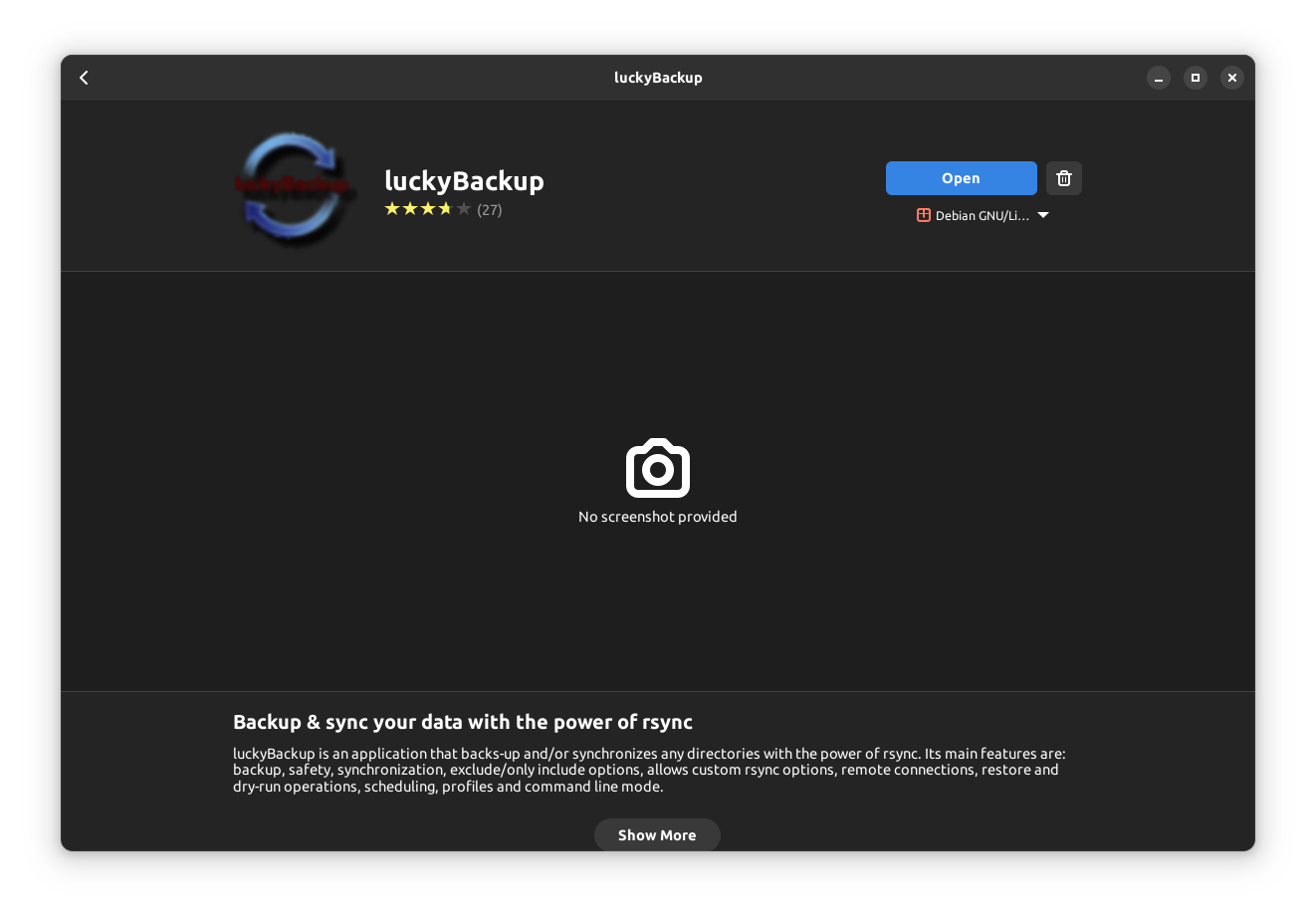
Drag and drop is not a sensible option IMHO particularly when there are (necessary, essential) hidden system files which will be ignored. If anything, using an rsync script (not difficult for someone with your level of expertise) will make the task so much more effective. There are gui options too for Linux such as Lucky Backup.
Don’t like to disagree and we all have our preferred method
But cross platform backup restore is not always possible
When I get a machine in to convert windows or mac s to linux I always use a system of copy paste and give the client a disk copy so they have a backup copy which is real and not software dependant
I did have one of those zip drives and they were very useful when I provided support for clients. I think I gave it away years ago with a bundle of other old PC stuff to a local computer guy. I doubt it had Linux drivers - I used it on my old Win XP lappie (still buried in a cupboard somewhere).
Hey guys, those questions are far better than you would think - I guess.
There was an incident over here with a family of webpages.
They hosted quite a few pages on their own server.
Of course they did backups regularly, but…
In feburary they upgraded the server with a new CPU.
At some point that CPU got faulty, unfortunately the signs of being faulty was not obvious at first glance.
In july the server completely crashed - at that time it was obvious at least
Now they can’t stop apologizing, because they lost couple months of data.
As with the faulty CPU the backups were broken, and if that wasn’t enough, even prior backups were ruined.
So they found that what they can really restore is something from april…
At least that’s the story what they told.
So the lesson tells me, the “how do you know you can restore your backup” is a very good, and valid question!!!
So how do you know?
Go and do restore it. Does it work? You can then restore.
Yup, and it doesn’t have to be something mission critical either - a small test folder would do it and done, say monthly, you get used to the routines involved so when something does go wrong, you know intuitively how to do a restore without any panic involved.
There are different types of restore, all the lot is ok if the files structure remains the same, but if its into adifferent folder or sub director or in some cases a different named drive it could fail.
Mainly I just would like the one picture that is unreplacable restore and if dont know what its called or when i took it……
I got an opportunity for a full mission critical restore once . I ruined the disk content in my spare PC playing around with zfs.
I went to my usb backup drive with clonezilla, asked to restore disk image, and it all came back… about a month out of date.
I just use rsync and tar to backup my Pi “servers”… (rsync to copy files and folders elsewhere, tar to create a gzip’d archive file)… And I manually cleanup the archive files - keep one for the first week of each month…
I also use one of those Pi systems as a backup server for Apple TimeMachine (via Samba) backups for two MacBooks…
the above backups all go to a 6 TB USB 3 powered drive plugged into a Pi4 (8 GB)…
I don’t really backup anything else… My docs, scripts and other stuff is shared across multiple computers using ResilioSync… On the machines where I’ve set it to retain deleted files - there’s 30 days worth of stuff to recover from…
Worst backup recovery I’ve encountered was with MS SQL Server. The genius (sic) who setup the backup job (in Arcada / Seagate Backup Exec) decided to just do backups of the tables - but not the schema or indexes! So - we went into disaster recovery and could only recover flat tables! I was able to find another copy of the database with the schema and indexes and use that to generate some SQL to index the flat tables…
Yes, rsync is fine for daily backups of data.
For total disaster protection (like a disk failure) I think some form of imaging of disks or partitions ( like Clonezilla) is needed.
Well, for now the project has stalled the reason being Debian 13.
I installed Debian 13.1 on my existing scratch PC (fully replacing the Ubuntu 22.04 instance on that machine) and I have to say I am somewhat disappointed in the OS so far.
On my wife’s Ubuntu 22.04 and my Debian 12 instances, I have SMB shares to my Synology NAS using an entry in /etc/fstab to mount them. I then use the GNOME extension Desktop Icons NG (DING) to show the external drives on the desktop. This has worked perfectly for years.
However, Debian 13 refuses to perform in the same way. The drives are mounted (confirmed with mount -av) in terminal) so that is not the issue. This is seemingly not just a GNOME issue because I also tried the xfce and cinnamon desktop environments too and these didn’t work either.
The only thing I can put this down to at this stage is perhaps the Kernel 6.12.48+deb13-amd64 until I spin up a Live USB of another distro with GNOME DE using the same generic kernel to test it out.
The Debian forums are seemingly pretty quiet about 13 at the present - forums.debian.net seems to he constantly down of late with a the error “Problem loading page” and posting about this issue on Stack Unix & Linux has not generated any responses thus far.
So, for now at any rate, I’ll keep the money in my account until I find a satisfactory solution.
The Ubuntu 22.04 instance which this was going to replace is supported until Apr ‘27 so no pressure there, for now, anyway but a disappointment nonetheless in the meantime.
Well, the desktop icons issue is not yet resolved but I have found a different Extension which will do for now called Network Share Automount. This automatically mounts bookmarked network locations, is persistent and creates a bookmark in the side panel providing easy access to the NAS shares included in /etc/fstab. I also resolved the issue concerning the need to re-enter the keyring after each reboot (as a result of installing this app) by following the steps in How to Disable Unlock Login Keyring in Linux - GeeksforGeeks
This simply involved loading the seahorse app, right click on Login (for the smb share), change password and leave the new password field blank. - Job done!
simply because It’s worked perfectly well as per the setup on Debian 12 and Ubuntu instances for years without installing NFS or jumping through other hoops…
@nevj Tell me, how do you think that using NFS for sharing files will resolve the issue of the share folders on the desktop not appearing? I’ve already explained that I can see the shares now in Nautilus (using a different Extension) without NFS but they still don’t appear on the desktop…
NFS is a different concept . It does not share folders, it exports filesystems from one computer to another… ie it has a server(s) that export, and client(s) that receive exported files. Sharing is more a peer to peer concept.
You can set up NFS so that clients automatically do nfs mounts of any required filesystem, provided the server is running when they boot.
In your system , I think your NAS would be the NFS server. You probably want all other computers to see the NAS filesystem(s)… NFS would do that. Your Filemanager would see all mounted filesystems, including the NFS mounts. Your df would show the NFS mounts, along with all the local mounts.
So the answer to your question is yes, but you need to think outside the square.
still seems a lot of faffing about and I’m not convinced that messing with my Synology NAS is a good idea - it works perfectly well and has done so since I got it in 2020 but thanks for the idea. I’ll sit Debian 13 out until the developers sort the mess out (if they ever do). Debian 12 is still good to go and will get LTS security updates until the end of June 2028 with extended LTS (ELTS) to 2033 which should see me well in to my 80’s
My production environment is still Debian 12, but just had a look into 13.
My DE is Cinnamon, and it seems to just work.
What does not, is intel Quicksync on my 8th gen CPU.
Other than that the Trixie seems to be OK to me in every aspect - amdgpu can be installed, so that Davinci works, network shares work as I expect them to work.
Now I’m about to brake the law again, as it seems borrowing libmfx1 package and the older binaries of ffmpeg makes it possible to use qsv, but still there’s some fiddling with it…
I fear that move, TBH. The upcoming release of LMDE7 is based on Trixie, but I fear all those neat little things that will no longer work at all or in an unwanted way. For me, Trixie must wait.