I hope this guide help every buddy become a better linux user and feel confident enough to ditch windows  I will be adding in more like how to configure for Lutris to see find your cd rom for those games that need Insertdisk when lutris cant find the CD rom device and more. This is a basic guide only. Setting Attributes
How-To: Get Started with Lutris and Configure Specific Audio Devices
Are you new to Lutris? Do you want to know how to set up and play your favorite games on this fantastic platform, and also configure specific audio devices for Wine/Lutris games? Look no further! This guide will walk you through the basic steps of using Lutris and configuring specific audio devices.
Step 1: Set Up Your Game Options
To start, open Lutris and navigate to the game you want to play. Right-click on the game icon and select “Configure.” From there, choose “Game options” at the top of the window.
Here, you’ll set up the locations of the executable where the Wine Prefix will go. You can choose between 32-bit or 64-bit architecture for your game. This is only setting up the attributes for that game only - each game requires its own setup.
Step 2: Configure Runner Options and Enable Winetricks
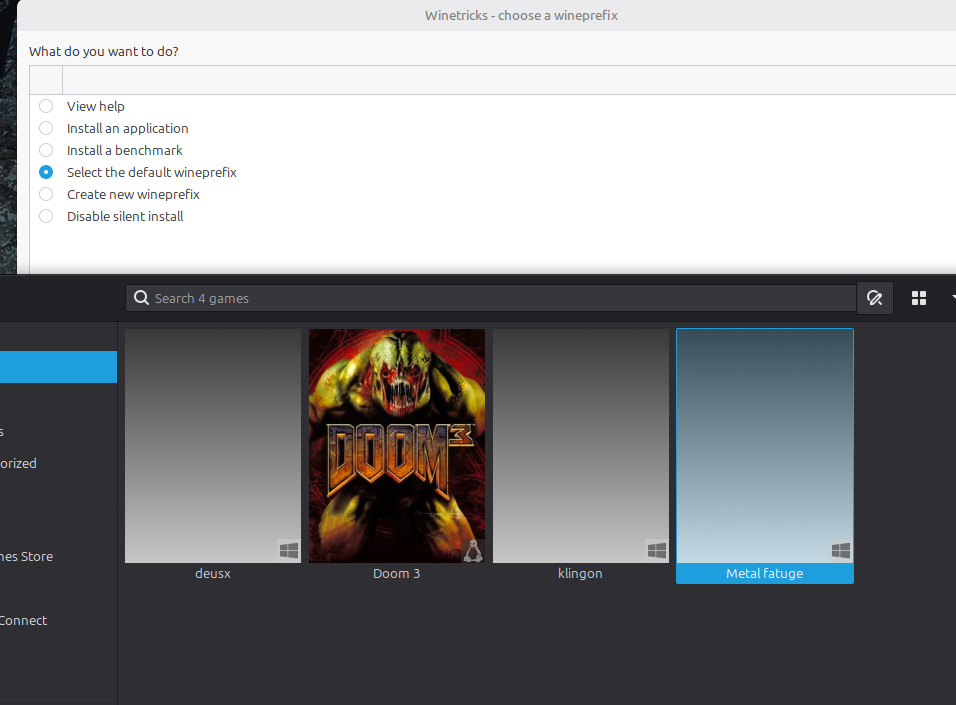
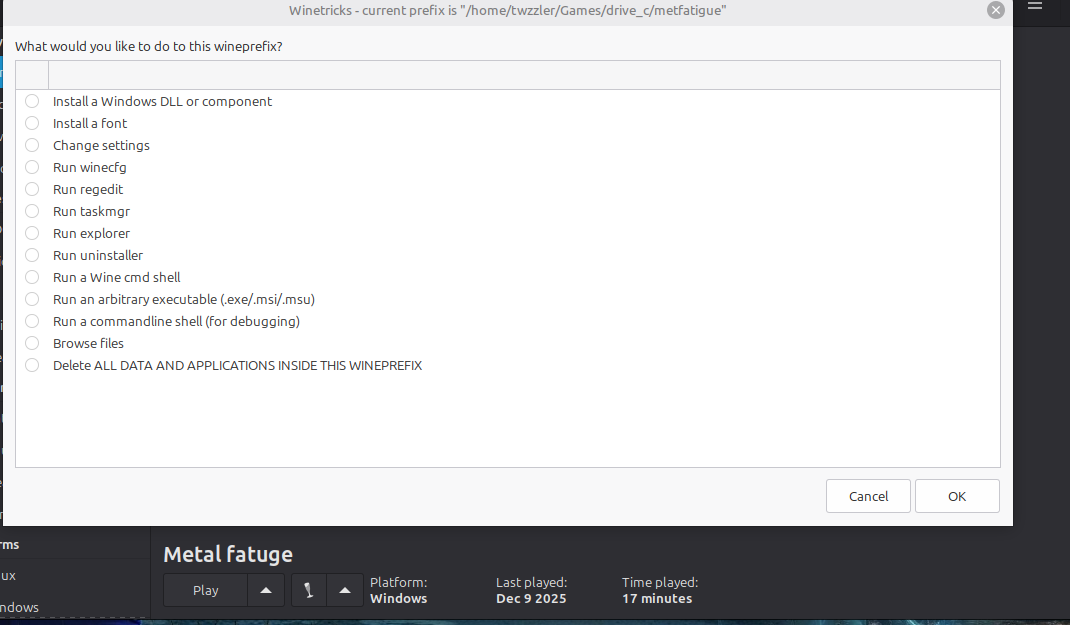
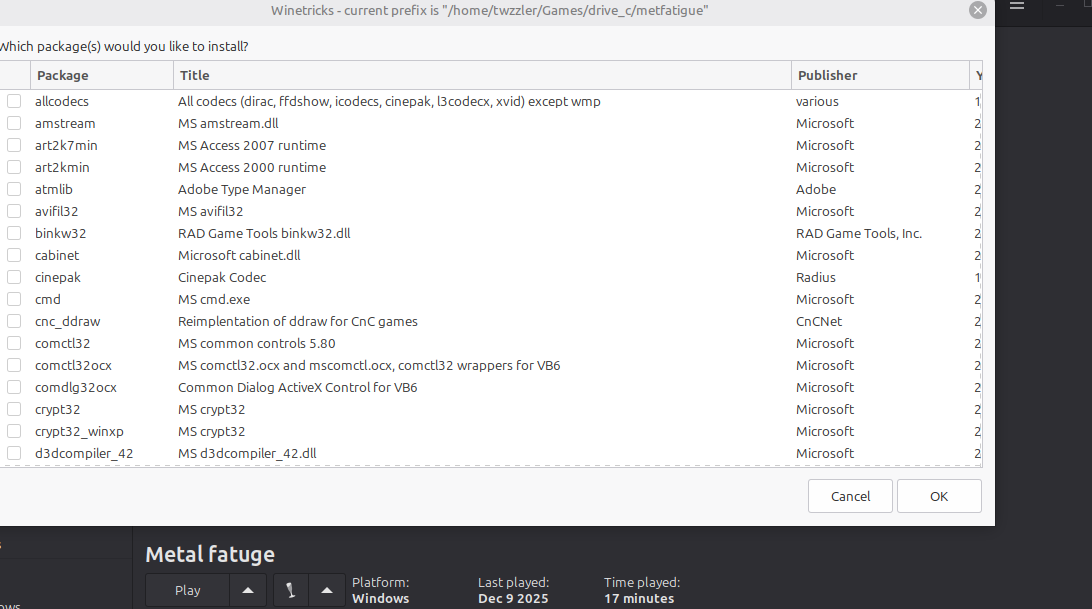
Next, navigate to the “Runner options” tab in the same window. Here, you’ll find a dropdown menu labeled “Wine prefix.” Select the desired wine prefix from the list. Additionally, make sure to enable Winetricks by checking the box next to it.
Step 3: Find the Name of Your Audio Device
Step 1: Find the Name of Your Audio Device
Important, Most you can leave at default
Open your terminal and use the following command to list all your audio sinks (output devices) and their exact names:
bash
pactl list short sinks
The output will look something like this:
0   alsa_output.pci-0000_01_00.1.hdmi-stereo    module-alsa-card.c  s16le 2ch 44100Hz   SUSPENDED
1   alsa_output.usb-SteelSeries_SteelSeries_Siberia_350-00.analog-stereo    module-alsa-card.c  s16le 2ch 44100Hz   RUNNING
Identify the exact name of the device you want to use. In the example above, the SteelSeries headset name is:
alsa_output.usb-SteelSeries_SteelSeries_Siberia_350-00.analog-stereo
Copy this name exactly.
Step 2: Configure Lutris Runner Options
Now, tell Lutris to use that specific device when launching your game.
- Open Lutris.
- Right-click on the specific game you want to configure.
- Select Configure.
- Navigate to the Runner options tab.
- Scroll down to the System options section (or find the area to add environment variables).
- Add a new Key-Value pair:
| Key |
Value |
PULSE_SINK |
alsa_output.usb-SteelSeries_SteelSeries_Siberia_350-00.analog-stereo |
(Replace the Value with the exact name you copied from Step 1).
Step 3: Verify and Play
- Click Save or Apply in the Lutris configuration window.
- Launch your game.
The game should now bypass the system default and play audio through your specified headset or speakers. If you switch back to your system’s default setting later, simply remove the PULSE_SINK key from the Lutris configuration.
The game should now bypass the system default and play audio through your specified headset or speakers. If you switch back to your system’s default setting later, simply remove the PULSE_SINK key from the Lutris configuration.


 )
)