Not just me, WE are a collective team its the only way forward.
Thanks to you ALL
Not just me, WE are a collective team its the only way forward.
Thanks to you ALL
The basic idea behind Pihole is that filter DNS requests (answer from own dabas) before sending request out to an upstream server to really answer. I’m not using Pihole, but do use the same tech.
It produces a more clean web expereience on every of our devices be it a tablet, laptop, desktop.
I like it so much that I implemented a private DNS for our Android devices on my VPS, which just makes the same filtration.
What all this is good for:
-don’t resolve known tracking sites
-don’t resolve known phising sites
-don’t resolve know advertising sites
-don’t resolve many “bad” sites, such as porn, nudity, gambling, etc.
What it is not good at:
-impossible to block embedded ads, such as ads on youtube in a video and ads contained right on a normal site, which is otherwise useful.
Dnsmasq has an option to log queries, I’d do this:
Enable log queries, and inspect what’s going on from the ipad.
I bet it’s trying to look up a site to check the online status, but the filtering DNS server has it on blacklist, thus it interferes with the ipad.
Maybe look at blocked queries, maybe clear all statistics, try to connect from ipad, and have a look at blocked queries from the last 5 seconds, and inspect them.
Sorry, I can’t really help on this further, lacking an ipad and a real Pihole…
Same here, and I still don’t know what the real problem is.
I found a solution for now: my router does not allow me to use custom primary and secondary DNS settings, and without this, other devices cannot be assigned IP addresses. I enabled DHCP on Pi-hole, then went to my router and disabled its DHCP settings. After restarting my PC and starting up Pi-hole, it assigned IP addresses to all the devices in the DHCP table within Pi-hole. Then, I re-enabled DHCP on the router. Now everything is working, and all devices on the network are being queried by Pi-hole.I will bu a new router and use pass through the old one to the new asus router.
That means 2 DHCP servers active on the same LAN. Not a good idea, I think…
When a machine boots up, asks for an IP, it will get the configuration from wichever DHCP server answers quicker in the moment.
I’d rather setup the DHCP in the Pi to serve with IP adresses, subnet mask, DNS, Gateway that conforms to what the router would also give.
So for example, if your router is at 192.168.1.1 and your Pi is at 192.168.1.100, the DHCP should assing an IP to the booting up computer 192.168.1.xxx, subnet mask set to 255.255.255.0, DNS set to 192.168.1.100 (the IP of the Pi!), gateway to 192.168.1.1 (the IP of the router!)
Will need extra configuration.
Yeah, I know. Until I buy a new router, there’s nothing I can do because the Bell 4000 doesn’t allow custom DNS changes. Today, I’ll have my new router. For now, it’s working.
Tutorial: Fixing Wi-Fi Issues by Centralizing DNS with Pi-hole (Static IP & DHCP Management)
If you’re experiencing intermittent connectivity issues or “query errors” across various devices when running a network-wide ad blocker like Pi-hole, the root cause is often a conflict in how IP addresses (DHCP) and DNS settings are managed.
This guide provides a reliable method to set a static IP for your Pi-hole machine and configure your router to use it correctly as the primary DNS server.
Prerequisites: Your Pi-hole is installed and running on a dedicated machine (Raspberry Pi, old PC, etc.).
Step 1: Set a Static IP for Your Pi-hole Machine
Before making router changes, your Pi-hole needs a permanent, unchanging IP address on your local network.
Log in to your Pi-hole machine (via SSH or directly).
Configure a static IP within your operating system’s network settings.
dhcpcd.conf on Raspbian/Pi OS, netplan on Ubuntu, etc.).Disable the DHCP server function on the Pi-hole itself. This is crucial to prevent conflicts, as your router will now handle DHCP.
Step 2: Configure Your Router’s DHCP Settings
Now, you will instruct the router to use the Pi-hole’s static IP address for all DNS requests.
Access your router’s administration panel (usually by typing the router’s IP address into a web browser).
Navigate to the DHCP Server section (it might be under “LAN,” “Network Settings,” or “Advanced”).
Modify the DNS settings within the DHCP section:
Primary DNS: Enter the Static IP address of your Pi-hole machine (e.g., 192.168.1.100).
Default Gateway: Ensure this is set to your Router’s IP address (e.g., 192.168.1.1).
You may leave Secondary DNS blank or set it to a public server like Google’s 8.8.8.8 as a backup, though leaving it blank is often best for full Pi-hole functionality.
Step 3: Power Cycle the Entire Network (Crucial Step!)
A full network power cycle is necessary to force all devices to forget old network information and pick up the new settings.
Put all connected devices into Airplane Mode or disconnect them from Wi-Fi/Ethernet.
Shut down your Pi-hole machine gracefully.
Unplug your router’s power cable for at least 2 minutes. This ensures all internal capacitors and memory are fully discharged.
Plug your router back in and wait until it is fully booted up and online (lights are steady).
Boot up your Pi-hole machine and wait until it is fully connected to the network.
Step 4: Reconnect Your Devices
Now you can bring your devices back online.
Take devices off Airplane Mode or reconnect them to the network.
Your devices should automatically connect and receive the correct DNS information from the router’s DHCP server, routing all traffic through the Pi-hole.
You may have to briefly “forget” the Wi-Fi network on some stubborn devices and reconnect, but usually, the fresh connection works immediately.
This setup should resolve connectivity errors, ensure consistent ad-blocking, and keep your Wi-Fi running smoothly!
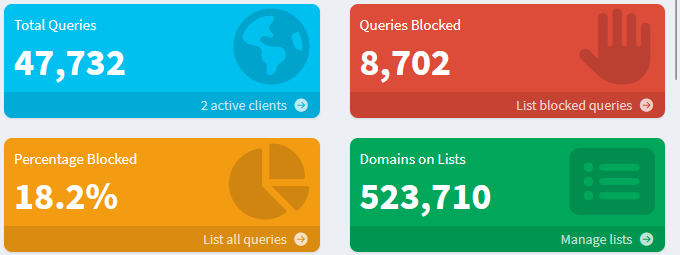
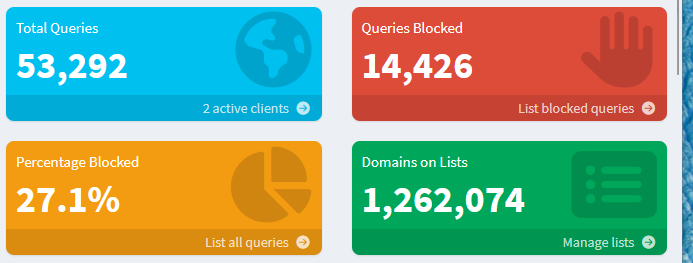
No AI involved in making this its all from week of writing and testing. I now have queries Blocked from every device. No adds no pop ups on my phone. Drum Roll.
Hi jackfrost @jackfrost,
Thanks for this tutorial.
This week, I’ve been testing ad blockers, and Pi-hole is one of the ones I’ve been testing.
As you can see, I’m new to this subject (I’m going to create a topic because of this matter of ad-blockers)
If I may ask, what blocklists are you using?
Thanks.
Jorge
Hi jackfrost,
Thanks for your quick response.
I was just testing Steven Black’s list on Pi-Hole, which has about 100,000 domains, and I was curious when I saw your statistics because I have no idea which lists to use.
I’ll check out the lists you mentioned, thank you.
Jorge
Go to the .txt file to see the list. Editing it never hurts to get as many as you want. What I do is add lots, then disable the ones that are blocking too much. This is a good practice to find the good ones and not so good ones for your needs
Very interesting find with Pi-hole! If you navigate to ‘Domains’ in the web interface “Dashboard” > “Domains”), you’ll see a list of domains that have been blocked by Pi-hole. Once you have your network setup configured as desired and protected with Pi-hole, it also extends protection to your mobile devices connected to your network.
What I discovered is particularly intriguing for those who do gig work or rely on their networks for multiple purposes. Even without advanced computer engineering knowledge or formal education in the field, exploring the capabilities of Pi-hole has opened up a wealth of information and understanding about how our networks operate and can be secured.
Some of history’s brightest minds, like Isaac Newton and Benjamin Franklin, had limited formal educations but made significant contributions to science and technology. In much the same way, you don’t need to be an expert or have extensive education to harness the power of Pi-hole and improve your network’s security and performance.
Do your remarks apply to the simple case of a home computer hidden behind NAT and supposedly not directly accessible from the internet?
or
are you really addressing setups requiring remote access, VPN’s and such?
Yes my remarks apply to simple case and secured by default. My router acts as a firewall, the gate keeper of the network. Pi-hole is perfect in my network setup, by taking over the specific role of my network Domain Name system. Pi hole sits between my network devices. When a device on my network tries to visit a website it sends DNS query to my router. The router now directs that to query to the pi-hole. Pi hole checks and requested domain against block list. What is in my block list Pi hole blocks it. Pi hole now is the gate keeper for all name resolutions filtering unwanted content before it hits the devices in all my network.
Thank you for explanation. I have some idea what is does now.
IMPORTANT NOT FOR BLOCKING ADS
It is important to remember that websites rely on revenue created by ads. It is our responsibility to recognize that. However, when we sell off a piece of our website to unsafe sponsors that we have to pay for at first, that can be risky to visit. I try my best to only block those bad ones.
You are welcome my friend have a great day or night.
It is 6.00pm here. I reside in Australia.
Do you get paid by click to other sites or fixed sum and do you monitor either or both ?
Landing / departure pages.
I have never added any type to the sites I manage, originally public services sites and now very small companies who would not be interested. Plus our village association never asked.
Just for my own interest