My screenpicture hops mostly up in chromium and firefox, how to stop it ?
Hi and welcome,
It could be a faulty cable, a power supply issue, a badly seated graphics card, a video driver problem, or an ill-configured X11.
Start by checking your cables
Also check hardware acceleration in the browser settings- try turning it off.
In Firefox - it is generally found under Settings>Tabs Browsing>Performance
Hi and welcome to our community
Perhaps you can give more details of your system, version of linux, if its a new installation or one you have used for a while, any new software you have installed…
But I agree with Neville and his ideas as a starting point
Thanks for your answer. I have linux Mint cinnamon. No new software,
I have checked cable and power -OK. How to acces a video driver problem ? And how to fix an ill-configures X11 ? It’s chinese to me.
The hardware acceleration is turned off.
Is your system up to date ?
Bottom right corner of your screen near the clock is the update button (looks like a shield) when you cleck for update it will require your system password.
Do you have a touch screen? I had a Lenovo X220 laptop that had a touch screen and the cursor would jump all over the place.
Not easy.
The only way to check on a video card driver problem is to substitute another driver.
Some questions
Is this a laptop or a desktop?
What type of video card do you have … inbuilt Intel, nvidia card, AMD card?
One thing you can try to check on X11 is to boot with the kernel parameter nomodeset.
Do you understand how to use grub to boot with an extra kernel parameter?
Did you check the video card is seated properly in its slot?
You can check the video card details like this
[nevj@trinity antiX26]$ lshw -C video
WARNING: you should run this program as super-user.
  *-display
       description: VGA compatible controller
       product: Navi 24 [Radeon RX 6400/6500 XT/6500M]
       vendor: Advanced Micro Devices, Inc. [AMD/ATI]
       physical id: 0
       bus info: pci@0000:03:00.0
       logical name: /dev/fb0
       version: c7
       width: 64 bits
       clock: 33MHz
       capabilities: vga_controller bus_master cap_list rom fb
       configuration: depth=32 driver=amdgpu latency=0 resolution=1920,1080
       resources: irq:80 memory:c0000000-cfffffff memory:d0000000-d01fffff ioport:e000(size=256) memory:fb600000-fb6fffff memory:c0000-dffff
WARNING: output may be incomplete or inaccurate, you should run this program as super-user.
You can see mine is an AMD card and its driver is amdgpu and it uses Navi24 firmware.
You may have to install lshw
Are you using Wayland Experimental? The way to check is to logout and click the icon next to your name. Like Neville asked, is it a Laptop or Desktop you’re using?
One way to get rid of this is install Xbanish. It is in the Mint repos.
What it does is removes cursor whilst typing, as vibrations on Laptops causes cursor to jump, especially on touch screens. All you have to do with Xbanish is add it to your startup menu, then every time you type it will disappear. How it works is simply masking your cursor. I always install it. Plus when typing on a Laptop, in forums especially would find words getting jumbled up, whilst typing. Xbanish cures that too.
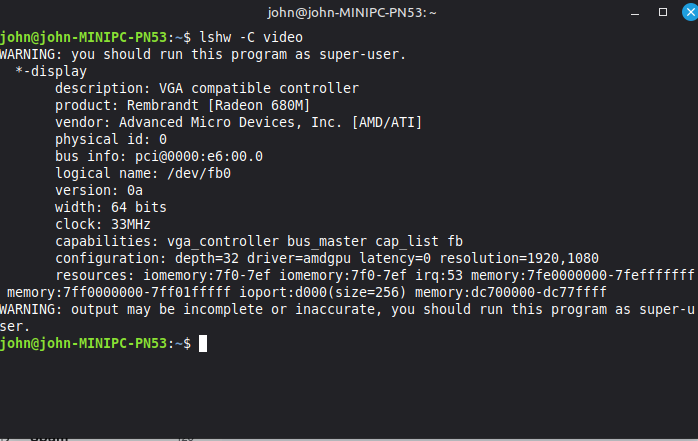
Great … so it is an AMD card and the driver is amdgpu … similar to mine.
There is not much room for problems there … AMD cards usually work well on Linux with no issues.
Probably not a video card issue.
BTW that radeon 680M is an integrated graphics processor, not a separate card?
When you boot your machine , you should get a grub menu … it will list every OS that is available to boot. I your case there may only be
- Linux Mint
- Linux Mint Advanced Options
You normally would just let it boot Mint.
Before it boots, if tou hit the ‘e’ key, it will drop you intoman editor where you can edit the grub boot script.
Arrow down to the line beginning with the word ‘linux’ ànd add to the end of the line the word ‘nomodeset’
Then hit F10 and it will boot with the nomodeset kernel parameter set.
What that does is stop the kernel from attempting to configure the mode of your video card and instead allows the traditional X11 mechanism to configure the card.
That may change things … like the refresh rate of your video.
The newer kernel method sometimes has bugs, so it is worth trying the traditional X11 config.
Lets see what happens with nomodeset before we think of other things.
I am assuming if is X11 … @clatterfordslim did ask about Wayland.
If it is Wayland I am not sure if this is relevant.
And its a desktop . Thanks … we can eliminate some things like touch screens.
Just a very simple question
Has it just started to happen or has it always been a problem
Just trying to establish a time period
Integrated card needs this script to stop screen tearing in browsers and whilst watching video, as there is no radeon screen tearing script, inside of usr/share/X11/xorg.conf.d. So luckily I have one and is easy to add. Below is the script copy and paste it into text editor, which you’ll find in the start menu under accessories.
Section “Device”
Identifier “radeon”
Driver “radeon”
option “TearFree” “on”
Endsection
Save it in documents for now and call it 20-radeon.conf
Next we are going to move it to /usr/share/X11/xorg.conf.d
Now as there are so many ways to move files around in Linux, we are going to do it the easiest way possible. First of all highlight with your mouse, 20-radeon.conf file you just created. Right click it and left click cut. Next in the side column of Nemo file manager left click Filesystem, scroll down to the bottom should be a folder called usr, open it, inside of usr find folder called share, open it, inside of here scroll down till you find a folder called X11, open it and finally open xorg.conf.d.
Right click empty space, without highlighting anything and choose in the right click menu that pops up, left click open as root. Pop in your password and push enter on your keyboard. Paste 20-radeon.conf file into the Elevated Privileges window that popped up after you entered your password.
Right click 20-radeon.conf file and at the bottom of the list is properties, we need to make this file root.
On the properties tab across the top left click it with your mouse and where your name is, in the properties window, left click it and a list will come up, you need to change your name to root on both of your names that are here, the one at the top and the one underneath. Once done close down all windows and reboot and let me know if you still have screen flickering problems. I use this script on my media PC and can guarantee it works.
That sounds like the solution.
@Lysetsengel … try Mark’s idea first.
Mark is saying that it is an X11 configuration issue and that he has a patch that will help the kernel configure video properly, so there is no need to use nomodeset.
That’s odd - I’m sure your GPU is older than mine (mine : 2022 : Radeon RX 6600/6600 TX/6600M w/ 8GB DDR5 VRAM) - but yours is Navi 24 - mine’s still Navi 23… Did you do a firmware update on yours? Hmmm - just did some reading; so you don’t update firmware - you update the runtime firmware (software on your O/S)… Reckon I’ll just leave mine as is…
Also - apologies to OP ( @Lysetsengel ) for seeming to hijack this thread - I’m infamous for doing that on this forum  …
…
Yeah - what @nevj wrote earlier - that GPU sounds like an integrated one - or a mobile one (so probably integrated if you’re using a desktop PC) - these are never as performant as discrete GPU - but mostly “adequate” for most desktop usage…
I vaguely remember having screen tearing and odd stuff happening on a Dell laptop a few years back (Intel GPU) while running Google Chrome - disabling hardware acceleration in Google Chrome fixed that for me - but I’m talking 7-8 years ago? Ubuntu 18? I seem to remember I no longer needed to do that Ubuntu 20 on the same hardware…
It might depend on the OS.? I did that lshw in Void.
No, I think it is set for the card.
I did not do a firmware update… that is how it came.
Navi24 is a pain … Netbsd does not support it yet.
I read that Navi23 is a larger graphics processor than Navi24…?.. so the numbering is meaningless.
Thank you !
I’ll let you know, when I have had time to try.
It has been a problem for several months, maybe a year.