I found out and rebooted my pc. But I cannot get it started !
In the top left corner I´m asked to login, which I do, and asked a password, which I don´t know. If I use the login it´s incorrect.
Now I´m writing from my laptop.
I found out and rebooted my pc. But I cannot get it started !
In the top left corner I´m asked to login, which I do, and asked a password, which I don´t know. If I use the login it´s incorrect.
Now I´m writing from my laptop.
So you made the file. Cut and paste it into usr/share/X11/xorg.conf.d
You must be in as root, so follow what I told you in the original instructions. Your password is what you used to login with. When you right click the 20-radeon.conf file after placing it inside the xorg.conf.d folder, at the bottom of the list is properties, click on properties then a window will pop up find the permissions tab across the top, left click it. You need to change your two names to root, click where your name is and a list will pop up, replace your two names with root.
So what you’re saying is that when trying to open as root it does not except your password?
Okay we have what I like to call, Linux says no.
This is going to get a bit technical, we need to make Linux say yes to your Password. I use Linux Mint Xfce and as far as I know all the Grub menus show up in every environment of Mint with a 30 second timer, after you switch on PC? You’re using Cinnamon, so do you see a menu when you first switch on your PC? Also are you able to update Linux Mint, through the update shield icon that is on the task bar, panel at the bottom? As it does ask for your password when updating.
First it asks for login, and write my login. Then it asks for a Password. I don´t have one, if a write the login again, it´s incorrect.
After 30 seconds app. the “Password:” disappears and again ask for login. So I´m locked out.
Normally i can update Linux Mint from the shield icon, and it always asks for my login.
I don´t see a meny when I open Linux Mint. I only have to write my login
So it goes straight through to the login screen.
Are you sharing this computer with someone else?
I need to know whether you have administrator rights or not.
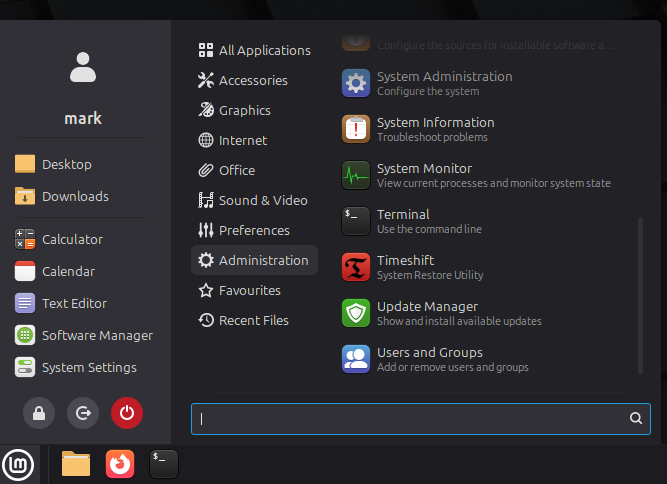
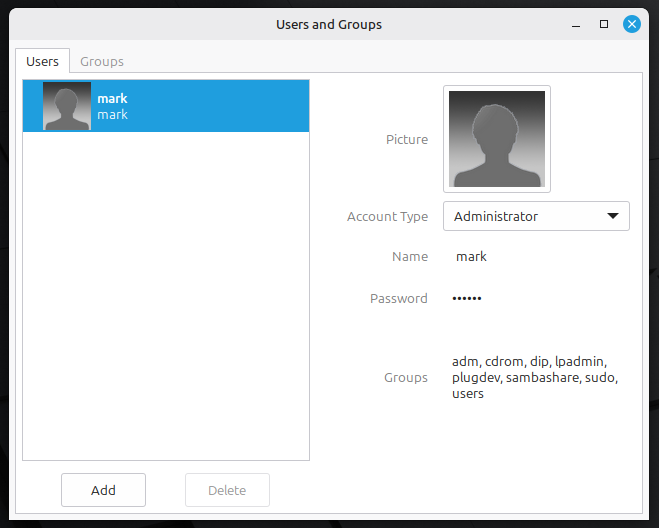
In the applications menu, highlight Administration and look for Users and Groups. I have installed Cinnamon in VMware, there are pictures below to help you.
Pop your password in then highlight your name to see if you’re Administrator or not.
Well, I don´t think I have made myself clear. When I switch on the PC, I cannot get into any menu, I can only write my login, and then nothing opens. So what am I going to do ?
Is this computer shared with other people?
Have you got important stuff on it?
Is it dual booted with Windows?
If you answer no to all of the above, then I highly recommend a reinstall of Linux Mint.
Not shared.
No dual with Windows
But some important stuff
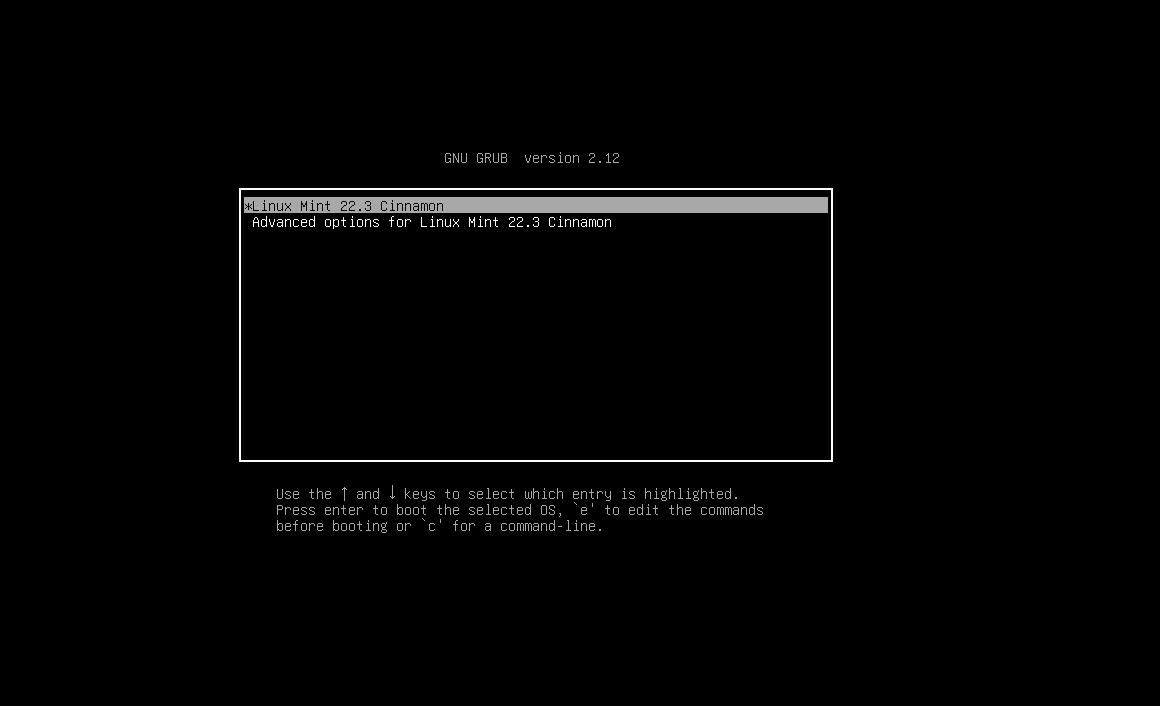
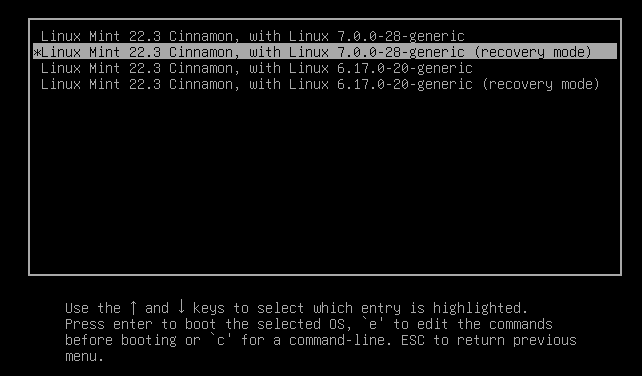
What I would do, is this. When you switch on your machine, hold down the shift key, this is for Legacy boot. UEFI boot keep tapping the escape key, till you see the Grub Screen.
Depending on how you installed Mint on your machine, determines which keys to press to get to the Grub screen.
Pictured below
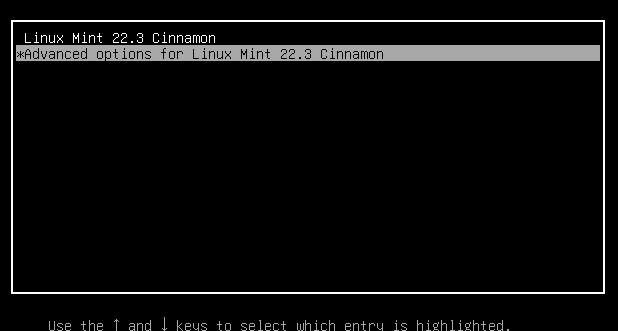
Next you want to use your down arrow key on your keyboard to highlight Advanced Options for Linux Mint
Hit your enter key, then click down on your arrow key to recovery mode. I would choose the 6.17 recovery mode, rather than 7.0.
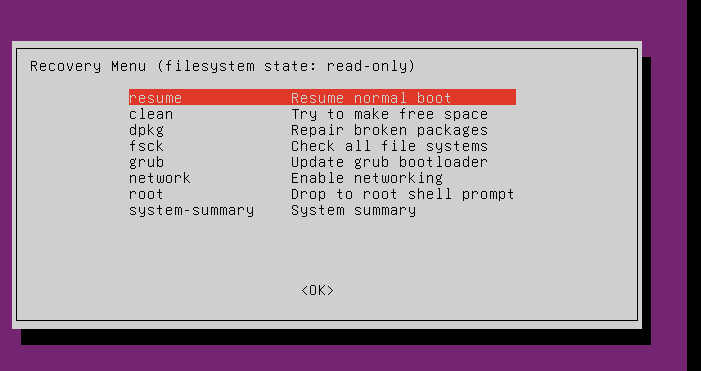
Once it boots to recovery mode, push enter Resume Normal Boot pic below
Thank you, Mark.
I´ll do what you suggest.
And let you know. Maybe I´ll need help on the way.
Always here to help if I can. As are many, many others too.
I did what you wrote, but it didn´t change anything. Still the same: I am asked to write my login, which I do, and than Password, which I don´t have.
so still locked out
When you first installed mint, you would have been asked to create a password.
Or did someone else install for you ?
Failing the above. Do you have a copy of mint on a usb or dvd you can insertion and boot from. Not to install but just to get your system started and give you access to the hard disk.
From the point, you could be able to copy files from your system. But if you get to that point and need help then just ask again
My fellow tech suggested at the Resume Normal Boot pic below point to just boot.
Personnel I would suggest running the disk check option fsck and repair broken package before trying to boot.
Thank you Paul !
I did install it myself, but I only created a login not a password. The strange thing is, that when I´m asked for a password and type whatever, nothing showes !
I have tried to install a new Linux Mint besides the old one, and can access the new LM but not the old. Do you think that I can boot from the USB ?
What is running a disk check option fsck ?
Thats quite normal, imagine your password is dog, i watch you type 3 letters, chances are its dog, cat or ben … so I can easy break into your system. Hence by showing nothing you are secure.
install a new Linux Mint
So you have 2 versions of mint on one box ?
The working one should see the other version but for security it may be protecteur, depending on how it shut down and if its a working version.
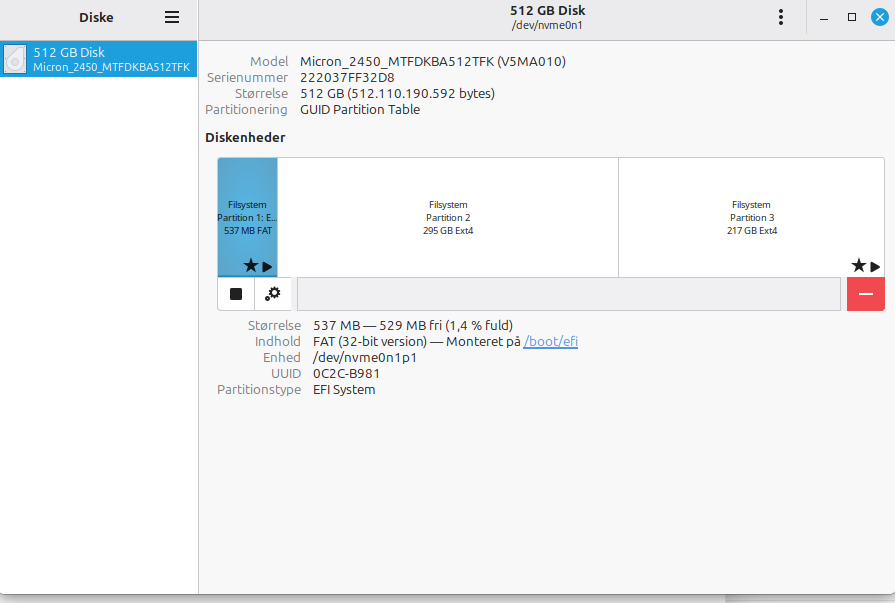
On your working version. Go to the menu, there should be an option called “disks” if you select that it should open a display showing your hard disk on the left of the screen and on the right part what is on the disk in relation to size, you cannot see files just yet.
Can you get to that part, then on your keyboard there is a key marked print screen (prn scr). Press that, it may appear as nothing happened, dont worry. Then go into libre office writer, on a new document select édit paste, your screen print should now show, save that file and in your reply to our site unload that image.
I want to check your disk is partitioned and then get you access to that other disk area by mounting it. I will explain more when I see your screen
If I am not around another tech may pick up from me to help you.
Occasionally disk filing systems become damaged, all sorts of reasons. The file system check fsck looks at your disk, says that bit I dont understand, is missing, faulty etc. The command then has a number of options to repair the problems, if needed we will cover them and how it works. Basically it finds a file when checking the system perhaps not closed correctly, perhaps tge index to the file us incorrect and it closes it or writes it to the index mainly automatic sole times with help. Its easy to use, on clients machines perhaps I run it a few times a year as needed. Linux file system is robust but very occasionally just needs a bit of help
Same with this option, in fact this evening I had to run it on my own box. Sometime last week i deleted a file in error so it would not update correctly, but a few mins with the auto repair and its sorted.
Again we will cover these if needed.
If you do in fact have 2 versions of mint on your system then we dont need to use a usb version in principal all can be done within the versions existant
Ok thanks for that
Your hard disk has ,3 partitions
First is just the boot part
Second and third are Linux
If you click on second part it should show mounted on the screen
If you click on second part again it should say mounted
If not there is an icon like a gear cog. Click on that and select mount.
Make sure they are all mounted so we can try access
Now all three are mounted !
This is very exiting for me  as it is important for me to get access to the original Linux Mint (partition 2)
Ok easy stuff now
On your desktop you should have an icon for the other drive.
Or using the file manager (yellow icon on bottom of screen)
You should be able to open the drive and see files and folders within that drive. These are your missing items.
They are in a folder called /home/username where user name is the one given under your login account. Inside that you should have folders marked desktop, documents, music, images(or pictures) you may have other names in that area and if you open for example documents you may have sub folders that you created, same in music etc.
At this stage I am limited to guide you as I do not know the names you used.
I would suggest you copy them all to an external device such as a usb key or external disk. To do this either select them and drag them to another device or select édit copy (ctrl c ) go onto the external drive select paste (ctrl v)
This may take some time depending on how many and the size of the items
Once complete and you are happy you have a copy on the external device…
I suggest a clean fresh install of mint using all of the disk and replace the existing one NOTE the user name and password !
Then copy the files back from your external drive to the new version
Paul, thank you so much !!
Now I can copy my files to an external harddisk !
I´ll do as you suggest and install a new Mint using the whole disk.
I couldn´t have done it without you. Thank you !