Till now it didn’t cause problems still I would rather be sure. Here it is.
Short after I installed Mint the first time, I have installed Ubuntu years ago and elementary OS8 on another machine though, I wanted to have my VPN on here so I looked up the ProtonVPN site and very handy it has several ways to install on Linux distros, including the sudo commands and stuff. But I didn’t use all this very often and I picked the wrong build to install. I copied the ‘ sudo ‘ to install the Arch version.
Needless to say, it didn’t work. It gave me several errors, but I am not sure if it didn’t do anything at all. So assuming you are experienced and knowledgeable:
Is there a simple way to check for sure?
Some way to remove whatever was added, which doesn’t belong?
Maybe it is completely redundant and I can forget about it, installing the debian worked fine and it is working. But I wouldn’t want my system being contaminated with a future problem, right from the start. Thanks for any tips and sharing of knowledge.
I am a little lost at what you are trying to do or have on your system please can you clarify ?
Are you using mint and arch as a dual boot on your system ?
Do you want or need them both ?
If you tried to install a vpn in the wrong system either mint or arch it will not work and should give you an install error. Except in your Downloads folder where you will have downloaded you can safely delete that. Excluding that the error would have not started the installation so no files or folders created.
No, I ‘commanded’ my debian machine to install a progamm which is arch based. Using the terminal. Yeah, wasn’t awake when trying that one. The terminal told me it didn’t work, but it had downloaded files and tried to install. So I am not sure if anything happened at all.
On that principal it did not work so it is very unlikely it did anything except download the files which you can just delete. But as Neville asked that would confirm the fact. By défaut arch uses tar format files where mint uses deb format and are not interchangeable hence it fails.
And I only asked this here because I wanted to prevent any kind of conflict in my system.
I am getting to know my way around this OS, most of my life it was MSDos and Windows from about 3.1 on though. Well, started with Philips MSX and Amiga.
So I do understand some things, the basics. Still, a lot of it is quite alien to me.
I like Linux though and couldn’t stand MS for a long time.
If files are downloaded they can’t do harm, can they? I’ve got 256GB SSD so I am not all to worried about a few MBs
I’m quite sure this is not possible. Debian uses apt for its .deb files; Arch uses pacman. Period. Or I completely missed your issue by your description.
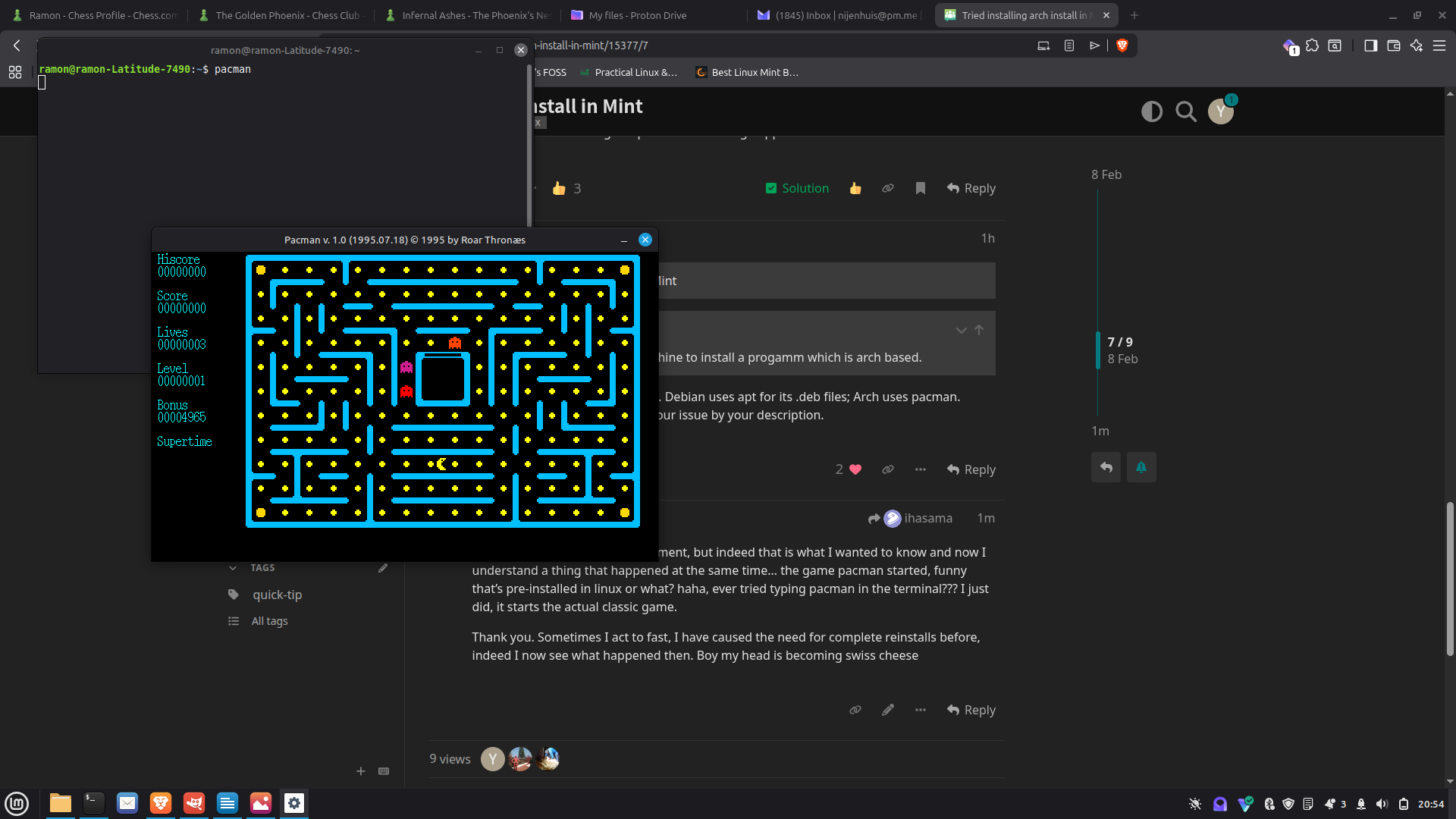
I know it wasn’t my proudest moment, but indeed that is what I wanted to know and now I understand a thing that happened at the same time… the game pacman started, funny that’s pre-installed in linux or what? haha, ever tried typing pacman in the terminal??? I just did, it starts the actual classic game.
Thank you. Sometimes I act to fast, I have caused the need for complete reinstalls before, indeed I now see what happened then. Boy my head is becoming swiss cheese
I vaguely remember “alien”.
I don’t mean the movie with Sigourney Weaver, but a tool that would install (convert?) a package from a different package format to .deb.
Maybe this is what you are looking for?
The files are harmless. I dont think your pacman command would have reached the download stage… as @ihasama said… Mint would not recognise the pacman command.
It is good to see you are being cautious.
Let me give you a tip for when doing important things like installs at the CLI
You can record everything that you see on the terminal… the ckmmand to do this is script. You use it like this
script <filename>
sudo apt install <myapp>
..... other commands
ctrl D  (terminates the scripting)
The file <filename>
will now contain a typescript of everything that happened during the install.
It helps if you have to go back later and check exactly what happened.
You dont need to use it all the time… just when doing important things that may go wrong. You can easily cleanup and remove the scriptfile, once you are happy with the result.
I think you mean Timeshift ?
It makes snapshots of the state of your system at the times you nominate… so if something goes wrong you can wind Mint back to an earlier date.
It is less useful as a backup of your home directory… you need to really look after your personal files with a proper backup to an external disk. Keep several copies.
There are various utilities for doing backups… choose one that suits you.
@easyt50 is a Mint user… he may have some backup suggestions
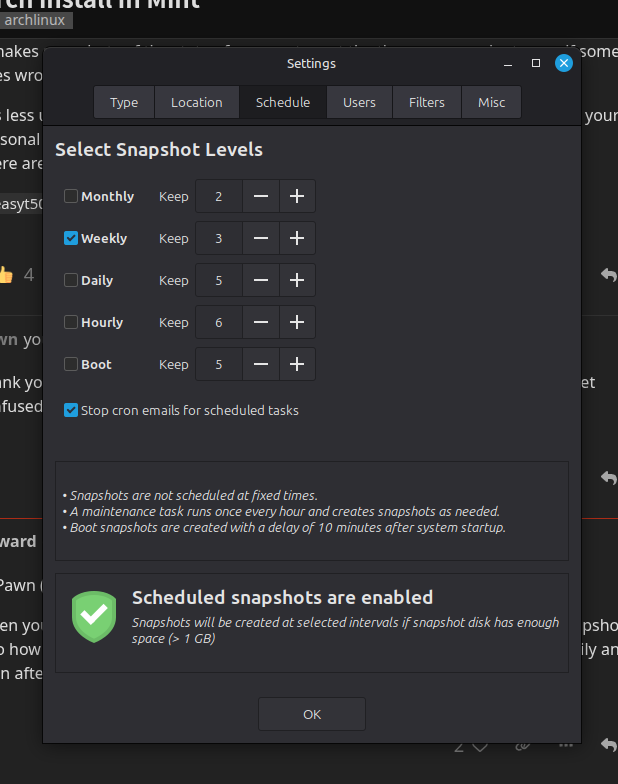
When you set up Timeshift, it will ask you how often you want to perform the snapshot and also how many of these do you want to keep. Option are like monthly, weekly, daily and even after each boot. I recommend Timeshift as it has help me out several times.
Thats fine, but you should also save a copy of your own files, data, images to an external device such as a hard disc or ssd. Just in case your own internal hard disk fails and you need to replace that. I have a system of 3 extrrnal disks which I copy to every week in a cycle process so last week did disk 1, this week will do disk 2 and next week disk 3. So in principal if my hard disk goes I can get back last weeks images all is not lost, if that was to fail I can go back to the week before copy so only looking a weeks data. Etc.
Its called grandfather, father, son (some may use other names) expensive but if you value your data worth doing.
I have a 2TB external harddisk, but I used to use it on windows solely. Does it even work with my linux distro? Since the installs must be on fat32, and the harddisk probably will be NTSF…
Simple answer is plug it in and see if linux mounts the disk. You will know within a few mins as the icons for it will appear on your linux mint desk top, you will then be able to open it and use it just like you do with the internal drive. Plus see anything on the drive from its time as windows disk.
Yes linux uses a different filing system (ext), but unlike windows it is quite happy to read other disk formats without any problems. I regular swap between windows and linux formats no problem.
Yes doing a copy of your files to it is a good idea. But think if that were to fail as well as your internal disk …. Not trying to sell your a disk just advising. For years I just backed up to one disk but now use more of the cloud for important copies as well as the disk.
Yes, this sounds good. 3 weekly snapshots gives you almost a whole month to recover, if needed. @callpaul.eu mention coping your data file. Mint has a tool called ‘Backup Tools’ that will backup your /home directory. I use it and would also recommend it for you.
Backing up your personal data that is on either Windows or Linux is important. You can always reinstall an operation system, but if your data is lost, it is gone for good.