antiX26 with xfce: the ISO

I have spent some considerable time deciding on the best way to install Xfce in antiX26.

Some people recommend removing `` turnstile from Xfce and replacing it with ConsoleKit. Both are login daemons intended to replace elogind.
Some recommend replaceing the Login Manager slimski with lightdm.
I have concluded that the best option is to retain both turnstile and slimski , because that is minimal disturbance of the default antiX26, and all the WM’s and init systems continue to work.

So I have implemented antiX26 with Xfce with turnstile and slimski.

The default xfce , as installed , has , to my mind , three glaring deficiencies

  • Thunar can not detect or mount internal disk partitions
  • It is impossible to reboot or halt from xfce , excpect by using poweroff at the CLI.
  • Some of the vital antiX menu items do not appear in the menues.

I have corrected those issues.
I have made an .iso file , and it is available at
https://sourceforge.net/projects/antix26-with-a-de/files/
It is 2.0Gb

I made the .iso because the process of configuring Xfce in antiX is somewhat tedious. Thank you @josephj222222 for the suggestion. I hope it may be helpful to someone wanting to start in antiX with a DE, instead of the default WM’s.

I have tested the .iso in a VM. It boots the same as the default antiX26 .iso … to user: demo with password: demo, as a live system. It is an install .iso. There is an icon called Install antiX which will start the installer from the live system. The Xfce works with all 5 init systems, the live system defaults to dinit. All the WM’s are still available, as well as the default Xfce.

Note: The antiX installer installs from the live system, NOT from the file. If you edit the live system, then run install, it will install WITH your edits.

I have tested the .iso on a USB stick. It boots with UEFI bios or with Legacy bios. It will not UEFI boot … it boots with grub.

The following replies contain some howto info … for those DIY enthusiasts and as documentation.

I would like to acknowledge assistance from @Rosika and @ProwlerGr .

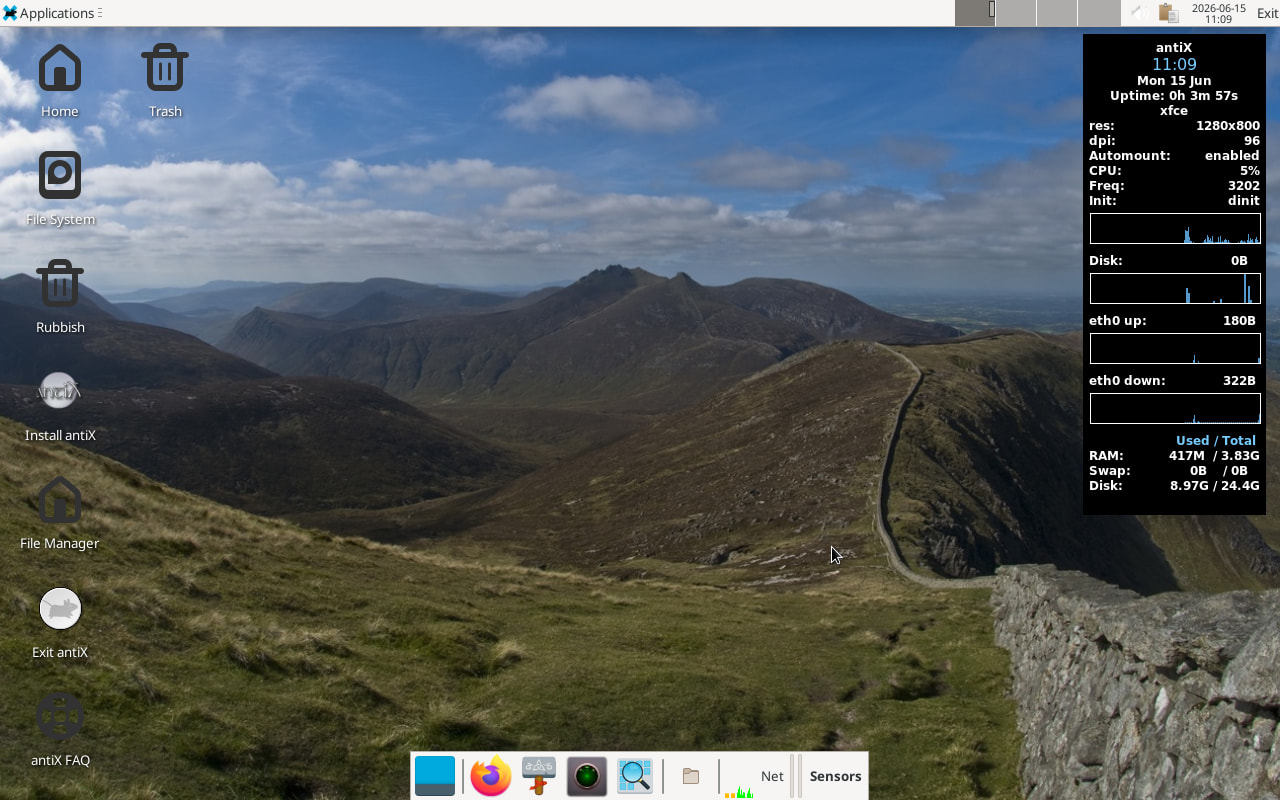
That is the live system, as booted to Xfce.

I may consider making a ConsoleKit .iso if anyone wants it. I have the ConsoleKit version configured and working. I consider the turnstile version to be superior.

Note:

  • Use the Install AntiX Icon if you wish to install from this .iso.
  • Use the Exit AntiX Icon to shutdown or reboot.
  • The live iso uses the same demo:demo and root:root logins as the official antiX26
  • The iso defaults to the dinit init system, but you can choose any init system in the grub menu, as with the official antiX26
  • The full 13 WM’s that come with the official antiX26 are available in addition to Xfce.

Summary of steps to add Xfce4 to antiX26 using turnstile session manager

To install and configure Xfce in antiX do the following

  1. Install some basic packages
apt install xfce4
apt install xfce4-goodies

Some documents recommend installing lightdm, but I have found that counterproductive. I am staying with the slimski Login Manager.

  1. Ensure turnstiled is running
    The default antiX26 should boot with turnstiled and seatd running.
    If not they should be enabled to start at boot , using each init system.

  2. Setup panels.
    Reboot, choose xfce in the Login Manager and configure panels
    There are 4 workspaces in the top panel, but the bottom panel is almost empty.
    To configure an Xfce panel in antiX, there is no menu button … you right click on the panel , and go to Panel → Panel Preferences.
    There I was able to add Firefox, Thunderbird, and Thunar , and I was able to add a cpu-monitor, network-monitor, and sensor-monitor on the right hand end.
    I also added the “Add Menu Item” command.

  3. Make Thunar see internal partitions
    At this stage Thunar will see files, but not internal partitions. To make internal filesystems visible to Thunar, one needs to do

apt install thunar-volman
[put yourself in the plugdev group]
usermod -aG plugdev <username>
apt install gvfs
apt install udisks2

Now (after a reboot) , Thunar will be able to see internal filesystems, and they will also appear as icons on the background screen.
But, Thunar will still not be able to mount internal filesystems… there is a permission problem.
To fix the permissions problem mounting internal filesystems do one of the following

apt install lxpolkit
apt install lxsession
[this will provide a permissions popup]

or

cd /etc/polkit-1/rules.d
vi 10-enable-mount.rules
add the following lines
polkit.addRule(function(action, subject) {
    if (action.id == "org.freedesktop.udisks2.filesystem-mount-system" &&
 subject.isInGroup("storage")) {
        return polkit.Result.YES;
}});
exit and save
[put yourself in the storage group]
groupadd storage
usermod -aG storage <username>
reboot
[The polkit rule will allow mounting without the permissions popup.]

I chose the latter.

Then one can use Thunar, or double click on filesystem icons,
as well as the options which work with IceWM, ie Disk Manager or sudo mount /dev/sdxx mountpoint

  1. Set the mouse focus
    The antiX menus do not contain xfce4-settings-manager… I have to start it at the CLI by typing
xfce4-settings-manager

Then I get a GUI for settings and I can do the following

  • Window Manager → Focus → Focus follows mouse
  1. Add some antiX programs to the menues
    There are two usefile antiX settings programs missing from the Xfce menues. They are xfce4-settings-manager and antiX Control Centre. One can add items to the menues with Applications-> Settings → Add Menu Item, or use my Add-desktop icon which I have added to Panel2
    It requires knowing the name of the program executable and the name of its .desktop file. For example AntiX Control Centre executable is /usr/local/bin/antixcc.sh and its desktop file is antiXCC.desktop.

  2. Add a personal background image.
    Xfce has its default background image hardwired in the code. It is xfce-x.svg
    If you wish it to boot up with a different image, the simplest way is to make a symbolic link

cd /usr/share/backgrounds/xfce
save the default image
mv xfce-x.svg xfce-x.orig.svg
then make a link
ln -s path-to-new-image xfce-x.svg

So it now looks like this

-rw-r--r-- 1 root root    9298 Mar  3  2025 xfce-x.orig.svg
lrwxrwxrwx 1 root root      42 May 20 21:21 xfce-x.svg -> /usr/share/backgrounds/mourne/mourne14.jpg

You may have to reselect the image in ‘Desktop Settings’ for the current background to change.

  1. Fix logout issues with slimski
    If you Logout using the Exit icon on the top panel, only Logout works, and you end up back at the Login Manager (slimski) screen. There you are supposed to type ‘halt’ or’reboot’ as user and the root password, but it does not work because slimski is in ‘preview’ mode.

The QUICK FIX involves bypassing slimski altogether , and halting or rebooting directly ( ie as with poweroff orreboot CLI commands) .

The SECOND FIX involves changing slimski configuration.
Do the following

edit slimski.local.conf 
add the following

systemhalt_enabled  true
poweroff_enabled    true
systemhalt_cmd  /usr/sbin/poweroff
reboot_enabled      true
reboot_cmd         /usr/sbin/reboot

default_sessiontype    xfce 

That alone makes use of ‘halt’ or ‘reboot’ at the slimski screen work, but the “Exit” top panel button only offers logout.

Finally, slimski needs a delay .
Go to /etc/dinit.d and edit the file slimski

type = process
command = /usr/local/bin/my-slimski-wrapper.sh
logfile = /tmp/slimski.log

depends-on = seatd

Then write the wrapper program my-slimski-wrapper.sh

#!/bin/sh
sleep 8
exec /usr/bin/slimski -nodaemon -z -i

So slimski waits 8 seconds when started or restarted by dinit.
Similar modifications are needed for other init systems.

Now any user can halt or reboot on the slimski screen.
Logout->Logout will drop you back to the Login Manager screen. From there one can type 'halt or ‘reboot’ for the username and give the superuser password , and it will reboot or poweroff.

If the delay is really inadequate, it may drop you back to the Login Manager screen in ‘preview’ mode, in which case attempts to halt or reboot will fail with a message ‘systemhalt_enabled=TRUE but this action is unavailable during preview’. In this case relogin as yourself and use poweroff or reboot at the CLI.

The above is a known issue with slimski. If it restarts while the xserver is still running it will start in preview mode.

The THIRD FIX is to make my own Exit icon which uses the antiX desktop-session-exit script which is found in /usr/local/bin.
Add-Menu-Item → setup the add-desktop popup with Item Location set to Desktop Shortcut. Set Item name to ‘Exit antiX’. Set Item Command to ‘/usr/local/bin/desktop-session-exit’. Set File Name to ‘desktop-session-exit’.

This third option is the best. It allows anyone to Logout, Reboot, or Shutdown without permissions issues.

  1. Change the default WM in slimski
    We want slimski to offer Xfce at boot up.
    Go to /etc/slimski.local.conf and change the following
## You can also set here the default sessiontype
# default_sessiontype     zzz-icewm
default_sessiontype     xfce
  1. Setup autostarted apps.
    Go to Applications → Other → xfce4-Settings-Manager
    Choose Session and Startup → Application Autostart
    Tick or untick apps as required.
Summary of steps to prepare antiX26 with Xfce for making an .iso file

To make an .iso file for use as an install medium, one needs to setup certain special files before using the AntiX ‘ISO Snapshot’ tool.

  1. Include the install program.
    On a live antiX you see an Install icon, but it does not appear in an installed system. The program is there , it is called /sbin/minstall.
    To add an icon do the following
Look at a live antiX26 ( eg in a VM) and copy out the file `/usr/share/applications/minstall.desktop'
Boot antiX and copy/paste the `minstall.Desktop` file into `~/Desktop`
  1. Setup /etc/skel
    In making an ‘Install’ iso, one’s home directory and other sensitive files in /etc are not copied. To control what the .iso has in the home directory of its ‘demo’ user do the following
    Files placed in /etc/skel will be placed in the /home/demo directory of the .iso file
    so
mkdir -p /etc/skel/.config/xfce4
cp -r ~/.config/xfce4/ /etc/skel/.config
chown -R root:root /etc/skel/.config/xfce4
cp -r .local /etc/skel
cp -r Desktop /etc/skel
cp -r .desktop-session /etc/skel
cd /etc/skel
mkdir Downloads Documents Music Pictures Videos Templates

Those are the necessary non-personal files that will make the ‘demo’ xfce in the .iso boot up the same as my own configured xfce install.

  1. Setup /usr/local/share/live-files/
    To control what the .iso file has in its /etc directory over and above the default for a fresh install, one has to add what is required to /usr/local/share/live-files/files/etc
    In the present case all that is needed is slimski.conf, slimski.local.conf , and dinit.d/slimski.
cp /etc/slimski.conf /usr/local/share/live-files/files/etc
cp /etc/slimski.local.conf /usr/local/share/live-files/files/etc
mkdir /usr/local/share/live-files/files/etc/dinit.d
cp /etc/dinit.d/slimski /usr/local/share/live-files/files/etc/dinit.d/slimski
mkdir /usr/local/share/live-files/files/etc/polkit-1
mkdir /usr/local/share/live-files/files/etc/polkit-1/rules.d
cp /etc/polkit-1/rules.d/10-enable-mount.rules /usr/local/share/live-files/files/etc/polkit-1/rules.d
  1. Run the antiX ‘ISO Snapshot’ tool from the menu.
    It will write scratch files in your home directory, and it puts the .iso file in /home/snapshot.

  2. Unfortunately steps 3 and 4. do not work for the case where the target .iso is a distribution .iso without persistance … ie for making my installation .iso.
    It is necessary to fix this by hand
    First loop mount the .iso file

mount -o loop snapshot-20260612_2011.iso /mnt

Then unsquash the file /mnt/antiX/linuxfs

unsquashfs -d /home/nevj/tmp linuxfs
Parallel unsquashfs: Using 12 processors
222668 inodes (215181 blocks) to write

[===========================================================|] 437849/437849 100%

created 194364 files
created 20051 directories
created 28232 symlinks
created 0 devices
created 46 fifos
created 0 sockets
created 26 hardlinks

Second, transfer the required files from /usr/local/share/live-files/files/etc to /etc , in the temporary copy in ~/tmp

cd /home/nevj/tmp
cp usr/local/share/live-files/files/etc/slimski.conf etc
cp usr/local/share/live-files/files/etc/slimski.local.conf etc
cp -r usr/local/share/live-files/files/etc/dinit.d/slimski etc
cp -r usr/local/share/live-files/files/etc/polkit-1/rules.d etc

Third … copy all files from the original .iso to a secon working directory

mkdir ~nevj/tmp2
cd /mnt
cp -r * ~nevj/tmp2

Fourth … re-squash the edited unsquashed linuxfs folder , replacing the temporary copy in ~nevj/tmp2

cd ~nevj/tmp2/antiX
rm linuxfs
mksquashfs ~nevj/tmp ~nevj/tmp2/antiX/linuxfs -comp xz -b 1024k -always-use-fragments

Fifth… make a new file linuxfs.info file

du -sb ~nevj/tmp 
cd ~nevj/tmp2/antiX
vi linuxfs.info
[edit in the result of the du command]

Sixth … make a new linuxfs.md5 file

md5sum linuxfs
vi linuxfs.md5
[edit in the new md5sum]

Seventh… Build the final bootable ISO
Use xorriso to master the new bootable ISO for distribution. Make sure xorriso and isolinux are installed.

cd ~nevj/tmp2

sudo xorriso -as mkisofs \
  -V "Custom_antiX26_Install" \
  -o ../antix26-xfce-turnstile.iso \
  -isohybrid-mbr /usr/lib/ISOLINUX/isohdpfx.bin \
  -c boot/isolinux/boot.cat \
  -b boot/isolinux/isolinux.bin \
  -no-emul-boot -boot-load-size 4 -boot-info-table \
  -eltorito-alt-boot \
[  -e boot/uefi/efiboot.img \]
  -e boot/grub/efi.img \
  -no-emul-boot -isohybrid-gpt-basdat \
  .

The bracketed line does not work for antiX26 … the file is not there. That means the .iso will not do an UEFI boot from a usb drive … it will do a grub boot, on either a UEF-bios computer or a Legacy-bios computer.
The output from above is

xorriso 1.5.6 : RockRidge filesystem manipulator, libburnia project.

Drive current: -outdev 'stdio:../antix26-xfce-turnstile.iso'
Media current: stdio file, overwriteable
Media status : is blank
Media summary: 0 sessions, 0 data blocks, 0 data,  138g free
xorriso : WARNING : -volid text does not comply to ISO 9660 / ECMA 119 rules
Added to ISO image: directory '/'='/media/nevj/Void-musl/home/nevj/tmp2'
xorriso : UPDATE :    1017 files added in 1 seconds
xorriso : NOTE : Copying to System Area: 432 bytes from file '/usr/lib/ISOLINUX/isohdpfx.bin'
libisofs: NOTE : Automatically adjusted MBR geometry to 1019/122/32
libisofs: NOTE : Aligned image size to cylinder size by 68 blocks
xorriso : UPDATE :  0.46% done
xorriso : UPDATE :  1.29% done
xorriso : UPDATE :  3.15% done
xorriso : UPDATE :  5.92% done, estimate finish Mon Jun 15 20:20:29 2026
.....
xorriso : UPDATE :  99.89% done
ISO image produced: 994544 sectors
Written to medium : 994544 sectors at LBA 0
Writing to 'stdio:../antix26-xfce-turnstile.iso' completed successfully.

Warnings are OK, but check for errors.

The completed, custom install ISO will be generated in the parent directory as antix26-xfce-turnstile.iso.

  1. Test the .iso file in a VM, and then written to a USB flash drive.

Epilogue:
There is more to building an install iso than pressing the antiX ISO Snapshot button.

Things to do in antiX26 (not xfce related)

  1. Setup Network Time Protocol
    There are 2 alternative packages for ntp
  • chrony
  • ntpsec
    We are going to use chrony, so
apt install chrony

There is no service package dinit-service-chrony, so we have to setup a servic
e file in /etc/dinit.d

cd /etc/dinit.d
vi chrony
[add the following lines]
type = process
command = /usr/sbin/chronyd -d
depends-on = loginready
logfile = /var/log/chrony-dinit.log

Start and enable the service

dinitctl start chrony
dinitctl status chrony
dinitctl enable chrony

or use the GUI under Control Centre → Services
Verify that everything is working with

chronyc tracking

If the displayed time is out by a lot ( eg 1 hour ) do

dpkg-reconfigure tzdata

and check that the local time zone is set correctly.

The daemon chronyd needs to be set to start at boot in each init system.

  1. DNS lookup failure
    AntiX used connmand in place of NetworkManager. Check that connmand is running. If running, you need to use connmanctl` to make sure connman uses dhcp on the correct interface and has nameservers. Try the following
connmanctl services
[make sure your interface's service-name is at top of the list ... note  the name]
connmanctl config <service-name> --ipv4 dhcp
connmanctl config <service-name> --nameservers 1.1.1.1 8.8.8.8

Test that DNS is working by pinging something.

Hi Neville, :waving_hand:

let me congratulate you on this outstanding achievement of yours. :+1:

I cannot even begin to imagine how much time and effort you must have put into this project. You blow my mind.

Absolutely. I like using Linux distros that come with xfce as per default.
Yet I would have struggled to come up with a solution like you offered it.
Or, to be quite blunt about it: I wouldn´t have succeeded at all. :wink:

Thanks for the additional info.

That´s good to know. I like that approach.

The how-to showing the recipes you implemented is a valuable source of information.
Thanks for showing us in such a detailed way what you did and which obstacles you had to overcome during your journey.

I wonder: shouldn´t an even greater circle of people interested in antiX be presented with the opportunity to get hold of your rendering of the antiX ISO :red_question_mark:

  • You posted it here, which is perfect-
  • You also out your ISO on sourceforge. Great.
  • What about providing a link to this topic (itsfoss.community) on the antiX forum as well?
    https://www.antixforum.com/ .
    Somehow the antiX people should be made aware of its existence, right?

Just a thought…

Thanks again, Neville, for making the result of your project available to all of us. :heart:
I tip my hat to you. :ok_hand:

Many greetings from Rosika :slightly_smiling_face:

Hi Rosika,
In all about 3 months … at a steady rate of 1 hour per day.
I like to do my computing in short sessions , with a break to review where I am at.
I is amazing how many issues I solve when not sitting at the screen.

Thank you for kind words
Regards
Neville

Hi Neville, :waving_hand:

thanks for your feedback.

3 months dealing with a dedicated topic. Wow, that´s what I call stamina. :+1:

I think your approach is a very good and insightful one.
1 hour per day, but, as you said: “at a steady rate”.
The key to your success indeed.

Sometimes one can easily get stuck when stubbornly trying to solve a certain problem in one day.
You seem have to evolved a fine daily routine.

Many greetings from Rosika :slightly_smiling_face:

Quite a lot of work, Neville. I had Antix loaded for about a month, used it fairly regularly. It never struck me as more remarkable than any other distro. Were my needs too simple?

It has a unique set of gui menus for system activities.
It is oriented towards being a cutdown linux for older computers, but that does not stop you using it on a modern computer.
It is strongly non-systemd … to the point of refusing to even use elogind
It is the only distro with multiple init systems availaable with a single install iso.
It is the only distro that comes by default with multiple desktops that you can switch betwen dynamically , without even logging out.
It has a unique installer called ‘gazelle’( shared with MX) which installs the live system, not the file in the iso.
but
apart from that it is just like any other Debian-based Linux
and
its development team are friendly.

Many interesting features for a quiet afternoon with nothing else to do.

Next!

I am thinking about next.
You mentioned KDE a while back… I think that is not feasable in antiX because of the many systemd dependencies that are creeping into KDE. Same applies to Gnome.
but
I am thinking about Trinity Desktop. TDE was a fork of KDE many years ago … it uses QT like KDE … it has a small footprint. It might fit well in antiX and give a KDE-like feel.
What do you think?
Have you ever used Trinity.

Can you think of a distro that employs Trinity? I can load some desktops into *buntu or other distros–is Trinity that portable?

Q4OS uses Trinity as default.

I think it is portable… it is open source.
You download a tarball … there is one for Debian Trixie, so it should be a cinch targeting antiX.

The source code is here

Maybe I’ll try Q4OS. I have no idea what to do with source code. Not very sure I know what a tarball is, either.

It is just an archive file containing all or part of a filesystem, made with the tar command. You download it like an .iso, and untar it. How you then install it depends on what is in it. There is usually an install script. Beware of scripts … check what they do before you run them.

That is the way things used to be installed, before package systems like apt came along. I think Slackware still does it that way.

I would like you to have a look at Q4OS … I need an opinion on Trinity.

Hi all, :waving_hand:

I just did an advanced search for it on distrowatch (DistroWatch.com: Put the fun back into computing. Use Linux, BSD.).
I selected “Linux” and “BSD” as “Operating System Type” and I chose “trinity” as “desktop environment”.

Here are the results:

  1. Q4OS (as @nevj already mentioned)
  2. Vendefoul Wolf
  3. Quarkos
  4. Exe GNU/Linux
  5. XPQ4

Many greetings from Rosika :slightly_smiling_face:

Hi Rosika,
Thank you for the list.
I think Exe Gnu/Linux looks interesting
Lets see what opinions we get on Trinity
Regards
Neville

Hi Neville, :waving_hand:

you´re welcome :heart: .

You may be right.
Distrowatch lists it at number 367, so it might be a bit exotic. Or perhaps not…
But overall it looks solid:

Exe GNU/Linux was a Debian-based desktop Linux distribution, it transitioned to using a Devuan base in 2017.
[…]
It uses the official Devuan repositories, as well as the Trinity mirror for updating the desktop environment.

It might be worth looking into.

Many greetings from Rosika :slightly_smiling_face:

Hadn’t heard of Trinity DE. It seems you can install it to many distributions:

I would prefer not to change the OS if trying new desktop environments but of course it is an option. I assume any distro has the most of the DEs in their package manager’s repos.

I think one could install Trinity from source in any distro… it seems to be designed for minimal dependencies … it has its own forked version of Qt.

I am interested in it for antiX because it is minimal so it fits with what antiX was intended for. My aim with antiX is to get some DE’s available …people give it a miss because they are afraid of WM’s.
AntiX has all the DE’s that Debian has in its repos, but getting them working after an install is not easy, because of the minimal nature of antiX and the absence of systemd support.