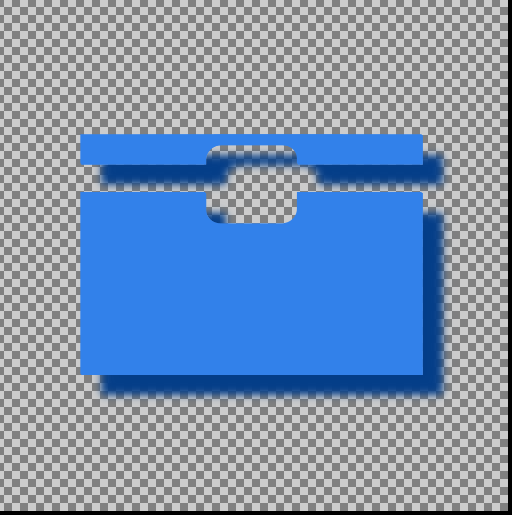
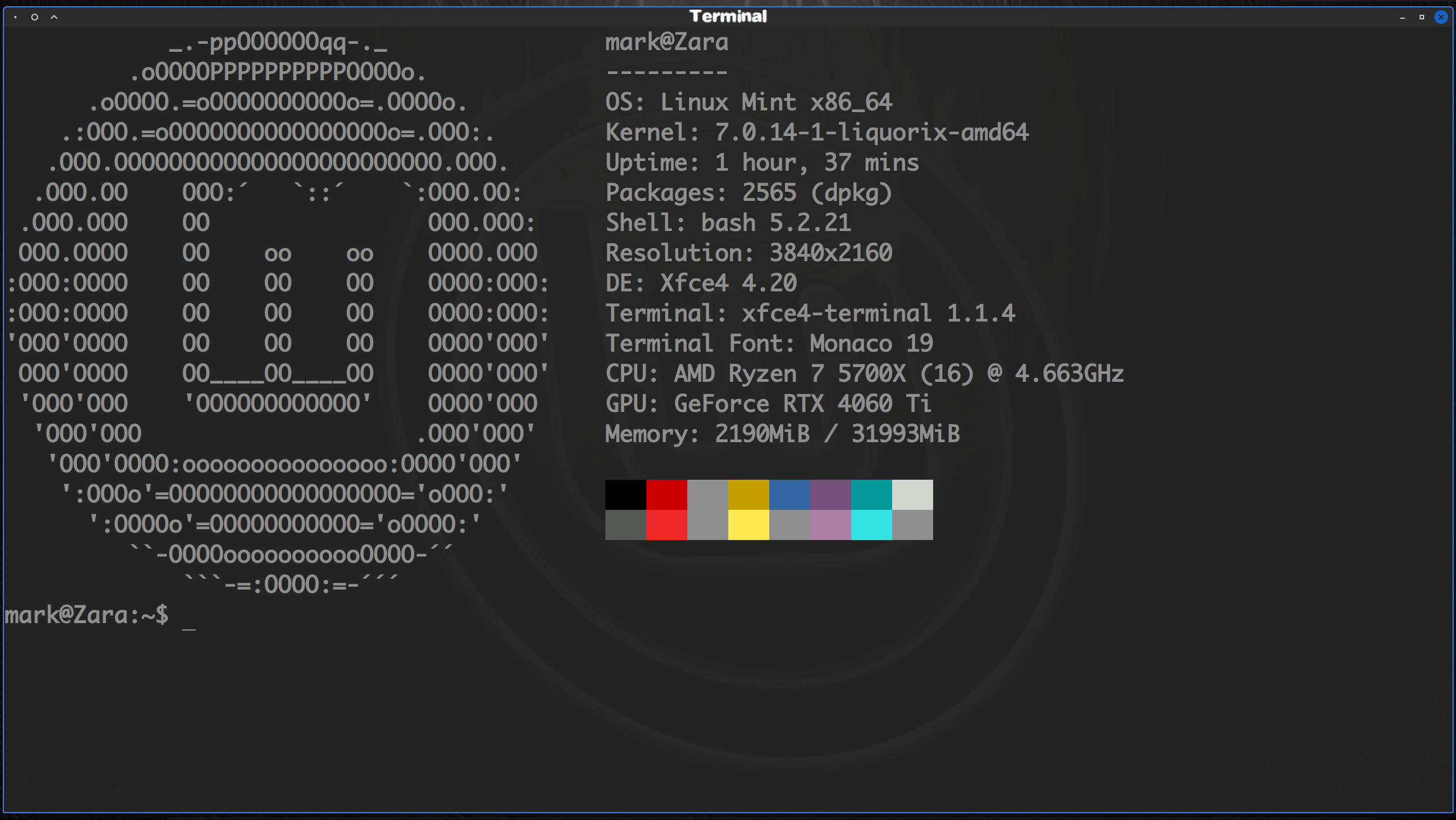
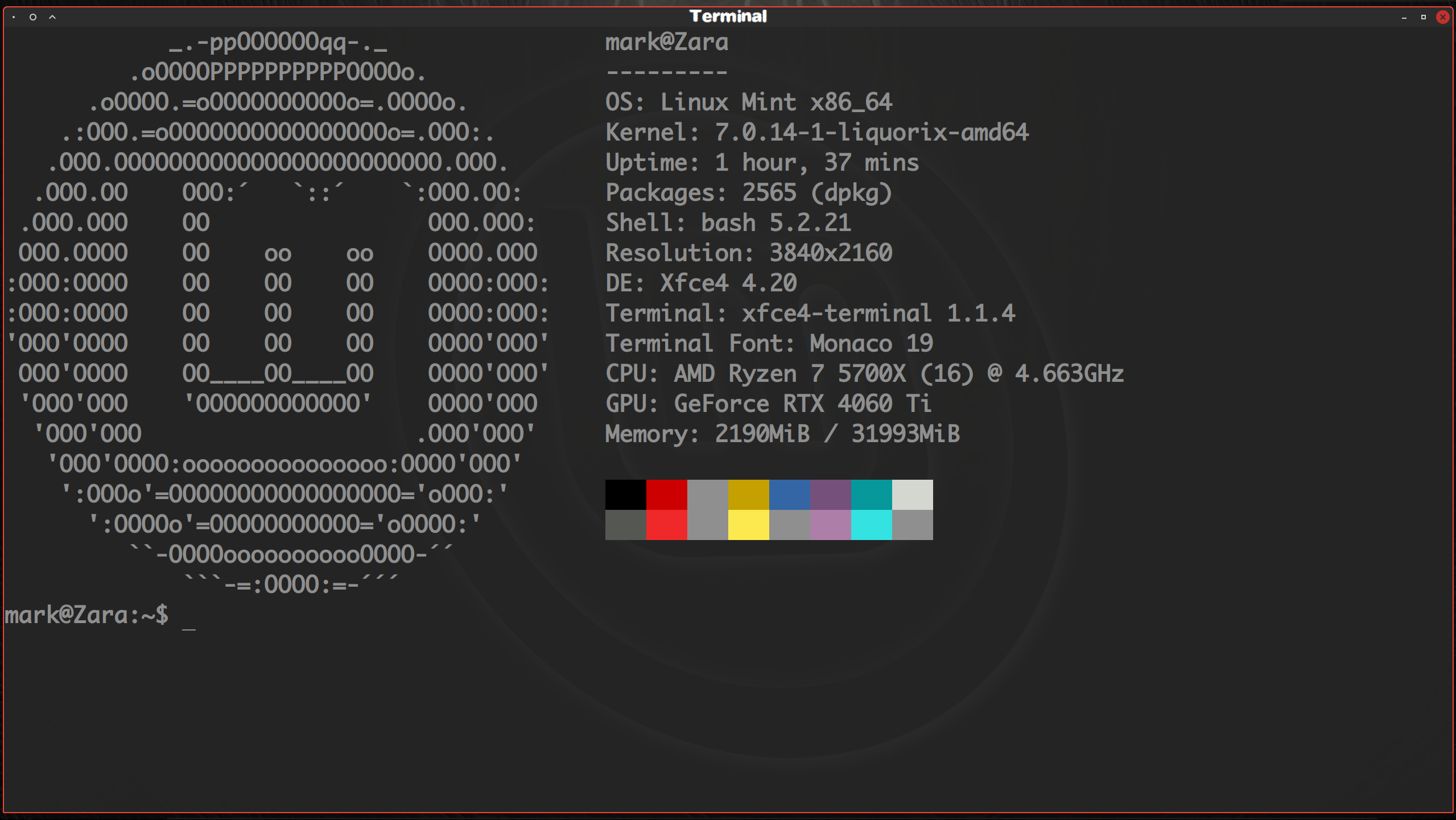
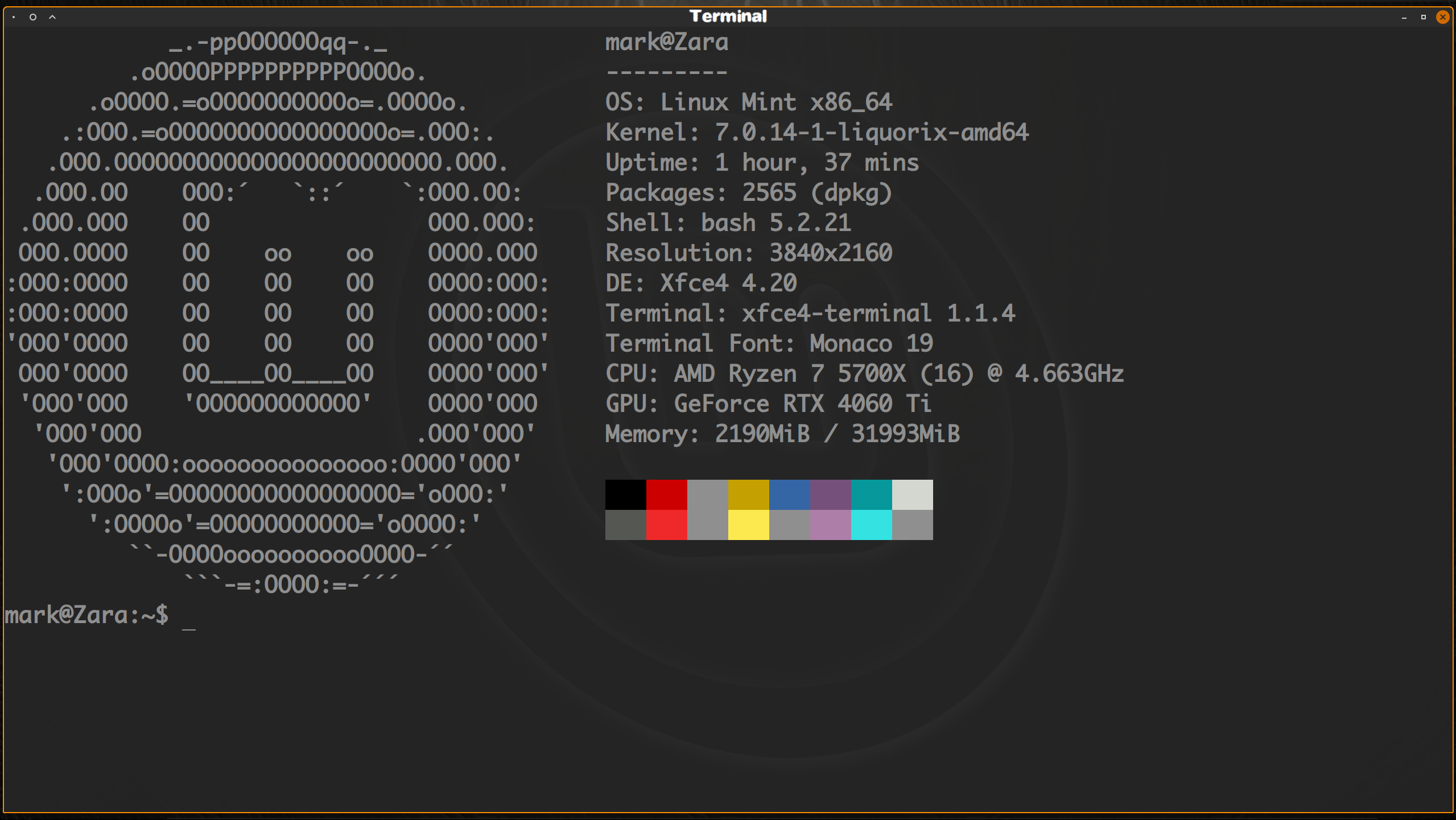
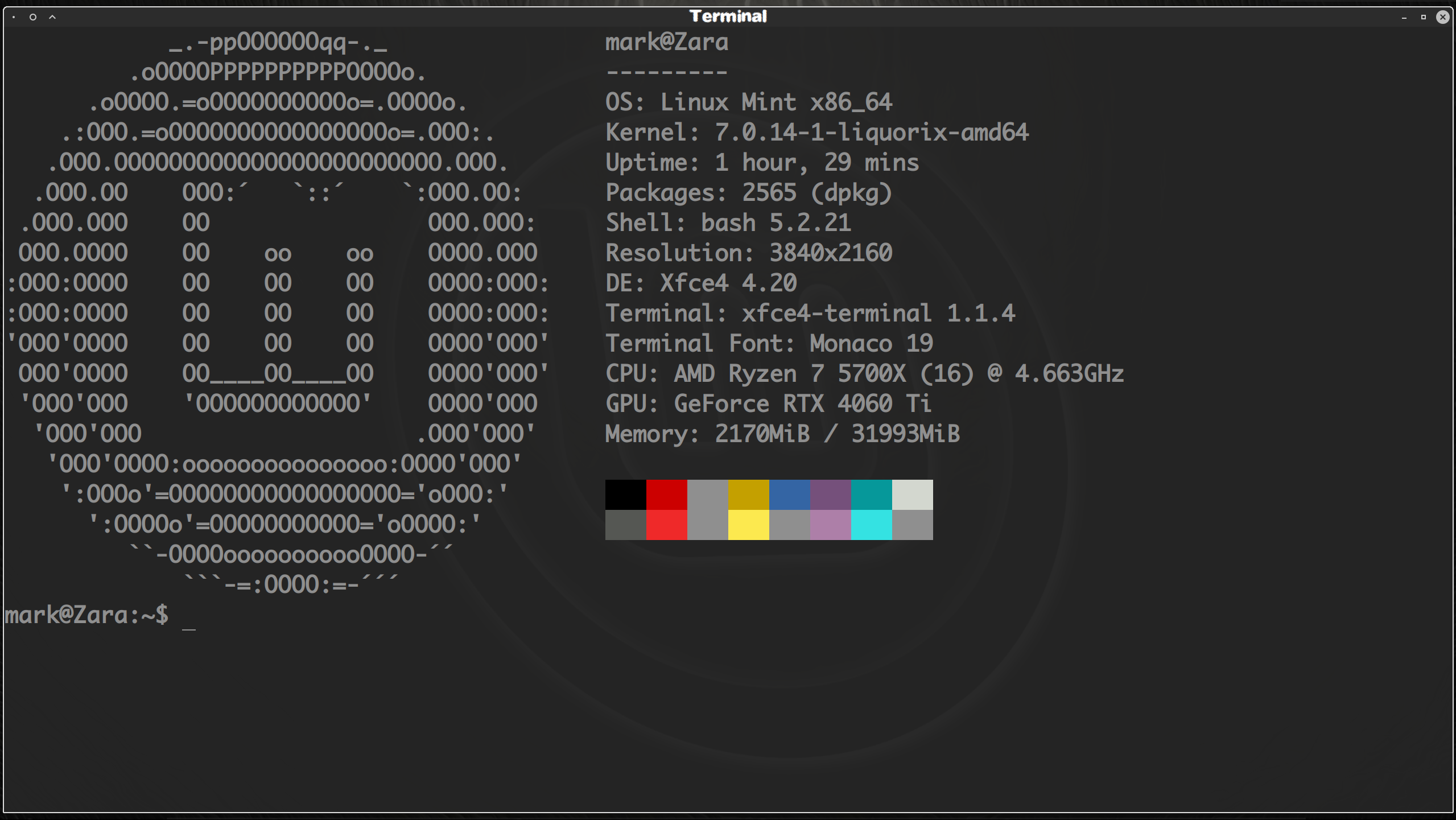
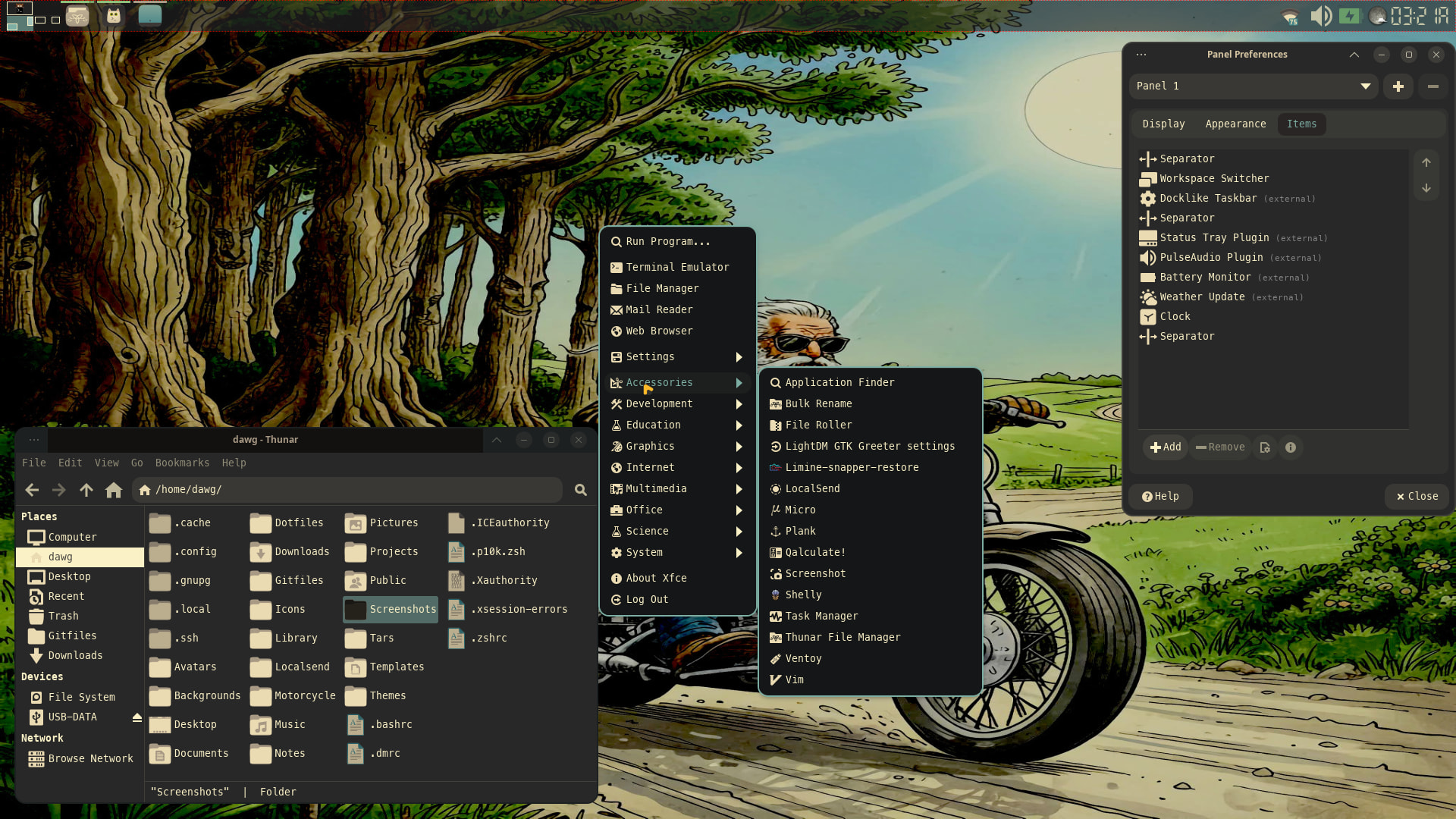
Been having a blast of late, changing Icon colors and making them stand out. I use Erik Dubois Sardi-Ghost-Flexible Icon theme, which has scripts to change the colors. I went a step further this week though. Through GIMP 3.2 gave them a shadow. Firefox and System-File-Manager below in blue, there are a total of four different colored Icons I have made, primarily for MX-Linux, but work well in any Linux environment.
I make my own wallpapers for every Distro I look at in VMware, or on real hardware. Not only Icon themes I muck around with, but made my own GTK Themes too, to go along with the colored Icons.
Based on Orchis Theme, but added the Xfwm4 to them, as otherwise just the same GTK decorations through out all four different color schemes. You’ll notice that when mouse is hovered over close window button it changes to the theme color, in all of the Terminal pictures. I have Flameshot set as default screenshot tool, plus Xbanish seems to be doing it’s job in hiding my cursor.
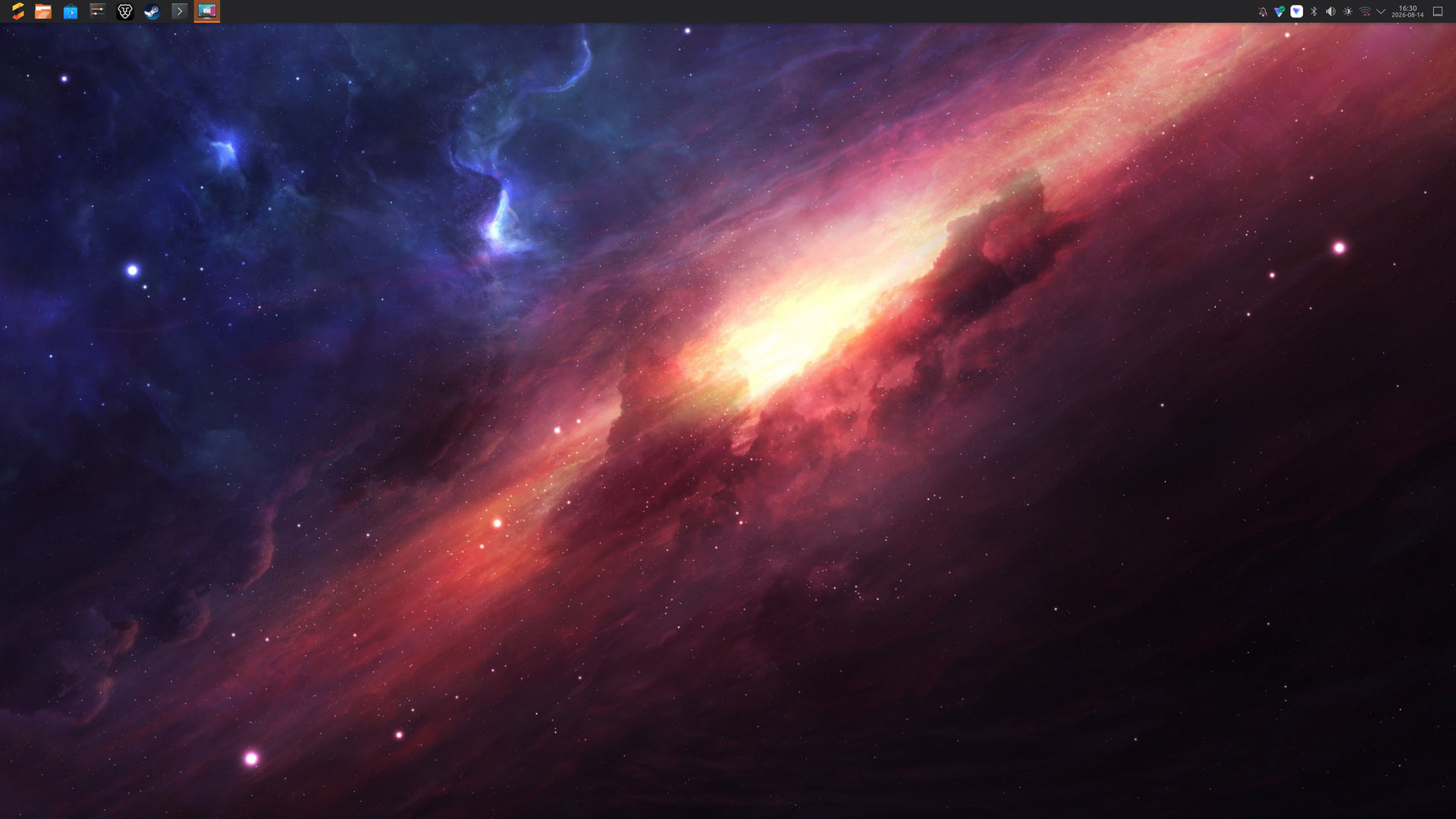
All windows have a border round them. I use my own themes in Linux Mint, as I hate the default ones that come with Mint, as they have undershoot lines going through every theme. Below are pictures of my panel with Xfce4-docklike-plugin. Transparent panels that hide away, hate clutter on the desktop, as it takes longer to boot, if you have thumbnails having to load up on boot. So all I have is four panels that flash up, upon booting.
Starting from left to right, Firefox, Nemo, Xed (Text-Editor), Handbrake, Gcolor2, Inkscape, Audacity, Davinci Resolve 21 Studio, GIMP 3.2, OBS-Studio, Celluloid, Clipgrab, VMware, Terminal, Synaptic and finally Thunderbird.
I customize the hell outta my desktop, simply because having it this way makes me feel good, able to get work done more efficiently. I pick and choose what color I want to go for, depending on how I’m feeling. The great thing about these Icons is they are not big in storage size, neither are the GTK Themes. I have renamed the Icon Themes to Slims-Ghost-Grey, Slims-Ghost-Orange, Slims-Ghost-Blue and Slims-Ghost-Red. I won’t be releasing them, as they are for me.
As Erik Dubois has released them and he says do what you want with them. I use Kernel Liquorix 7.0 Kernel. If I was to upgrade to 22.3 I would have the latest Liquorix 7.1 Kernel, but I don’t like the fact that Linux Mint made the decision to remove proper back and forward arrows, instead they have half triangles as arrows, which to me look ugly.
In Arch Xfce it is the norm to have these half triangles too, so will be looking into changing the default symbolic-icons back to proper arrows in Kiro-Linux- Xfce, Erik Dubois project. Plus I could in Mint 22.3 too. Everything I chuck at Mint or at Linux in general, it just keeps saying yes. The versatility of Linux is amazing and why should we be stuck to the way the Dev’s want us to use Linux?
Linux is all about freedom and we the users are in charge, not anybody else. Below is a picture of my clock, Pulse, Network, Update panel. Xfce is so customizable, so back in Peppermint OS days Mark Greaves introduced me to this script to put in your clock settings and in Whiskermenu too. I will explain what each command does. I use Vibrocentric-Bold-Italic Font for this to work, first of all the picture.

Here is the script I use for the clock, that goes into clock properties, when you right click it.
<span foreground=”F7E0E1” font_desc=”vibrocentric bold italic 27”>%R </span>
foreground=“color” font_desc=“font you wanna use then the size” %R is 24hr clock.
In Whiskermenu on the appearance tab, in right click properties, you can put the above code in, but instead of %R, change it to Menu, Apps, Applications, Oh look this where I go. You can change the font size too.
Majority of you wouldn’t need this explanation, but for those that may, there you go.
The reason why I shadowed the icons, is because my eye sight is getting bad. Anyway I think that is all, sorry for the Lord of The Rings Epic Novel sized reply.